
It is great to know that AutoCAD has so many productivity tools that we can use. Some of us might use it, some might not. And the rest just don’t even realize that the tools exist. Autodesk has change several command line tools, shortcut key combination several times.
Many people don’t realize that using shift combination can increase their productivityt. CAD Forum has listed all the keys, see the complete AutoCAD shortcut key here.
Here is a litle list that might interest you, because they are my favorites:
1. Hold [shift] + right click.
This shortcut key combination will display context menu for snap overrides. I love this one. Try to hold [shift] then right click. Release, then press [E] to activate end point snap.
Just like other Windows compliant software, in this context menu we can hit underlined character for shortcut key. We can activate snap overrides really quick using this combination.
2. Hold [shift] for temporary ortho mode
Holding this key while you draw, will activate temporary ortho mode. Exactly like when you activate ortho mode by pressing [F8]. But this is just temporary. I don’t use it much.
3. Hold [shift] + left click
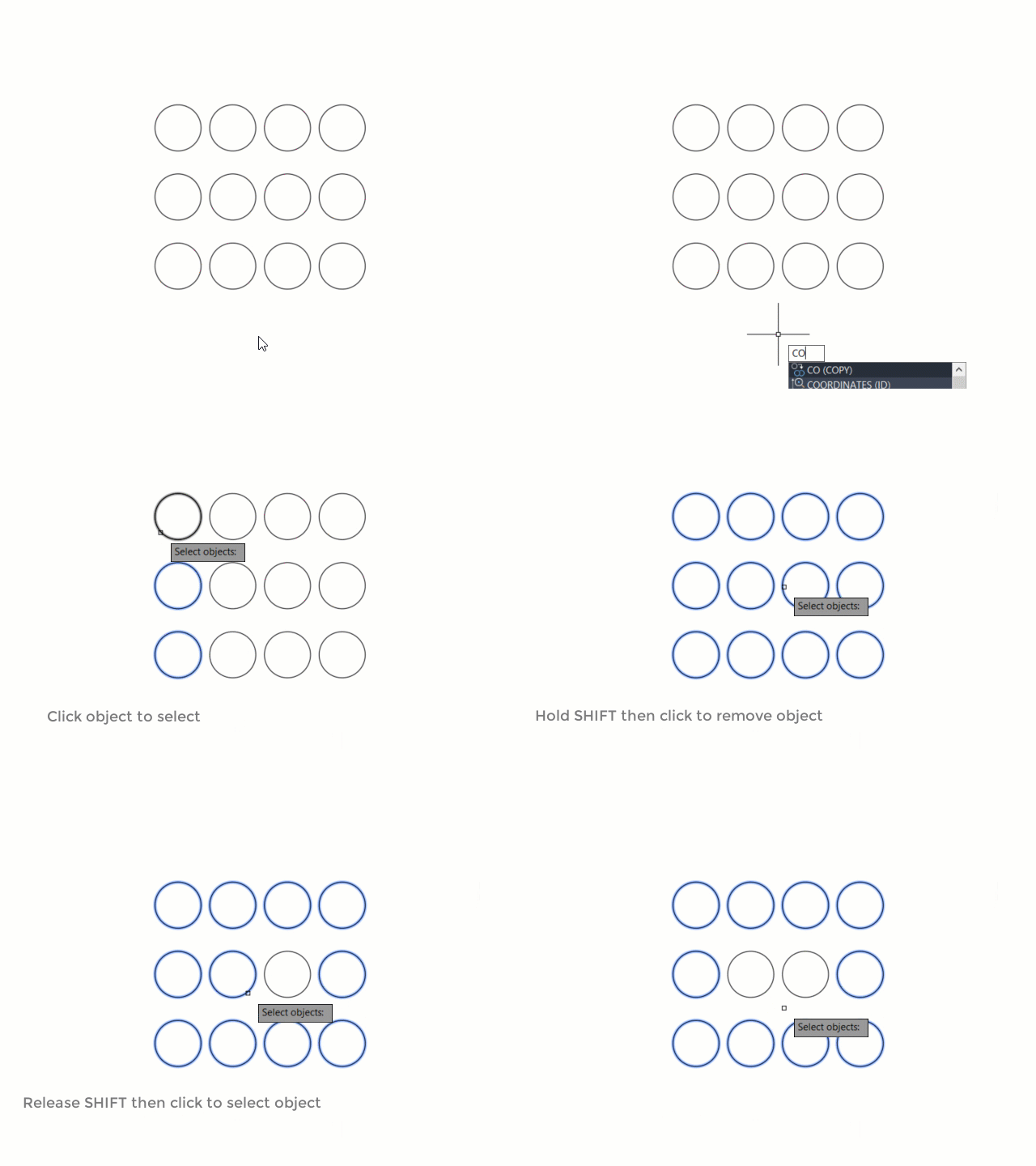
When you select many object for modification, sometimes it’s easier to select it all, then remove some objects from selection set.
Yes, you can type R then [enter] to change selection mode to remove. Then you can type A then [enter] to switch back to add selection.
But you can also hold [shift] then select objects you want to remove from the selection set!
4. Holding [shift] while chamfering and filleting
You know what will happen if we hold this shortcut key when we use chamfer or fillet? It will override the distance or radius value, and will use 0 (zero) value! Pretty nice, I use it a lot.
5. Holding [shift] while using trim/extend
When we use trim, sometimes we want to extend other objects to the same reference. You don’t have to finish your trim session, and activate extend to do it. Just hold [shift], then trim will be inverted to extend command. This work on the other way when extend command is active, it becomes trim!
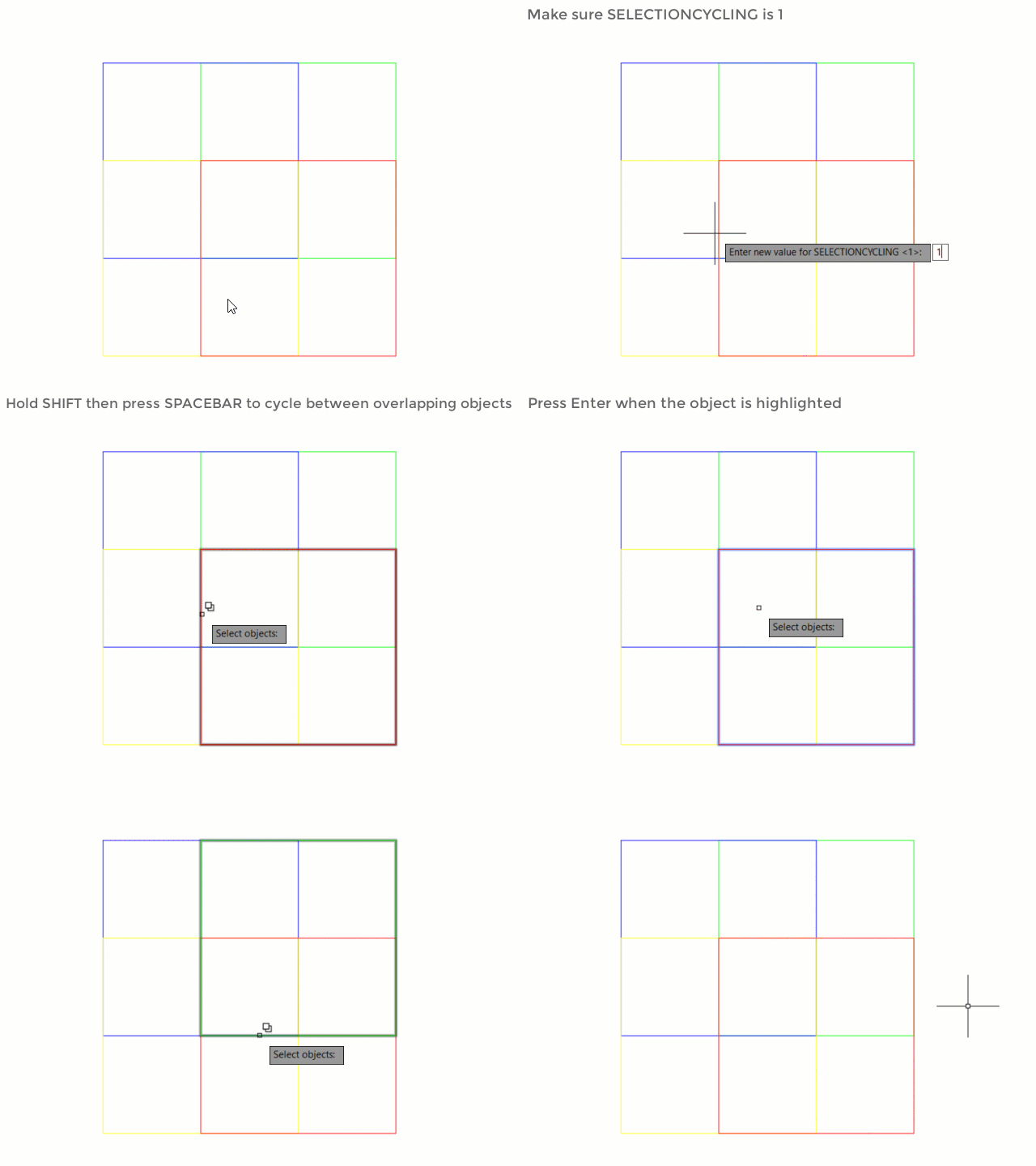
6. Holding [shift] and pressing [space]
This one is new. At least in older AutoCAD, we use hold [crtl] then left click to cycle between overlapped objects. This is what you can use so you can select overlapped objects easier.
Love keyboard shortcuts? If you love it, and you are using the ribbon interface, you might also interested to see that you can use ribbon shortcut!
What are your favorite keyboard shortcut, something that you can’t live without?


[…] https://www.cad-notes.com/6-shift-key-combination-you-might-not-know/ Source link […]