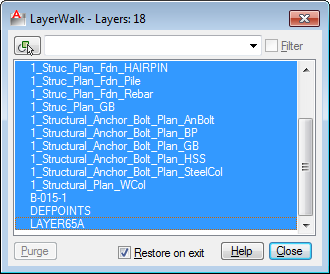
AutoCAD layer walk
With this tool, you can quickly check if your objects are placed correctly in their layer. You can turn off restore on exit if you find the one placed in wrong layer and move it.
Hold a layer
You can show multiple layers by pressing ctrl key then make the selection. Or, If you don’t like pressing ctrl, you can right click then select hold selection from context menu.
Create layer states
Another interesting thing it can make is layer state. Creating layer state may be a bit tedious, but it is easy using layer walk! Simply select all layers you want to turn on. It should be easy because it’s fast and you can quickly see the changes on your screen.
Now right click, then select save layer state from context menu. Type the layer state name, then you’re done! Very easy, right?
See how you can use layer walk in this video
Further reading:
If your layers overwhelm your layer list, you can also consider to use layer filter.


[…] https://www.cad-notes.com/autocad-layer-walk/ Source link […]
i use LAYDEL while purging backgrounds durring layer walk…