In the last several version of AutoCAD, Autodesk has changed many dialog boxes into palettes. Properties dialog box, now become properties palette. XREF, Layer Properties Manager, etc. They are all palettes.
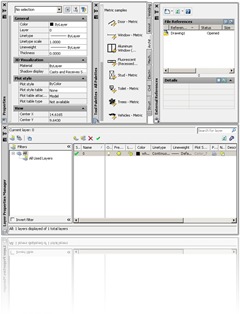
Why Autodesk changing those dialog boxes to palettes? It has to be good reasons for it. With palette, now we can change those properties and applied instantly… on the fly. No need to click apply or OK to see the effect. There might be more reasons for that. And I believe ability to minimize palette is another benefit.
Tool palettes also allows you to quickly customize your tools, so you can use it later. No programming knowledge is required!
Let the palettes open is taking a lot of space. I don’t think that palette are supposed to be close as soon as we finish with it. Some palettes are used regularly. At least, I use properties, layer properties manager, and reference manager palettes a lot. I prefer to keep them open.
Palettes can be minimized with auto hide feature. On the upper left of the palette, you will see |<> button. Clicking that will activate auto hide.
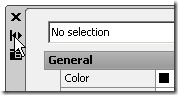
When you move away your pointer, the palette will be minimized. Only the title bar left. This can save some space in your drawing area.
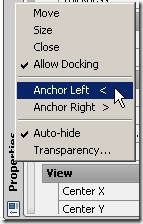
Still not enough? Right click over the title bar. Make sure the ‘allow docking’ is active, then choose anchor left (or right, depends on your preference)
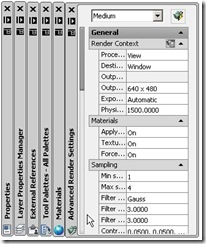
Your palettes will be docked on the left side of drawing area. If you open more than one palette, it will be arranged automatically.
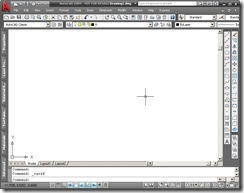
Try to hover your mouse pointer over the title bar. The palette will be maximized.
What do you think? Do you prefer this new interface, or you prefer the old dialog boxes? Personally I prefer the old dialog box, load faster. But it has some advantages.


I use a two monitor configuration: one for the drawing area and the bigger one for the palettes (Properties, Insert and Layers)
out of the top of my head
right-click in the grey verticale area
of the palette
How do I make pallets to icons, Coen Wilms?
of course you can set your pallets as "icons only" so you don't open them constantly by mistake as your pointer goes near the title bar.
Coen