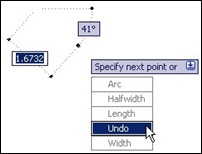
 Picking drawing elements in AutoCAD can be frustrating, especially if you have a complex drawing. You can see (most of) AutoCAD tools options on command line or dynamic input. Like this polyline tool for example. You can see it’s options: arc, halfwidth, length, undo, and width.
But do you see the options for selecting drawing elements? Nope. AutoCAD selection tool has options that you can use, but somehow, Autodesk just decided not to show them.
Let’s explore about this tool, from very basic knowledge that you might already know, to the hidden options!
1. Pick Single
You can pick single object when AutoCAD ask you to select objects.
2. Window
You can define a window selection by clicking at two points. Click first point on the left side, and 2nd point on the right side. This will select all elements inside the window.
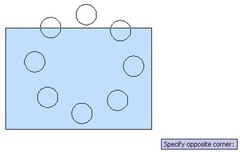 |
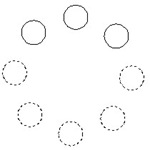
This action will select: (dotted circles are the selection) |
 |
If you pick your points right then left, then it will be cross window selection (will be explained next). This two are the default window selection.
If you want to activate window selection, type W then [enter]. Type it when AutoCAD ask you: select objects…
Even you pick points from right then left, it will be window selection.
3. Cross Window
Basically if your window selection defined from right to left, then it will be cross window selection. It will select all elements inside and touching the window.
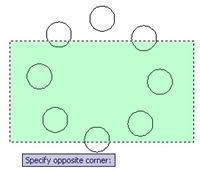 |
This action will select: | 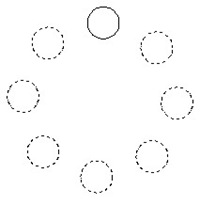 |
You can override to activate cross window selection by typing C then [enter].
4. Fence
You can select drawing elements by defining ‘a fence’ that touched objects you wanted. Just type F then [enter] to activate it. After you finish defining your fence, press [enter] to select.
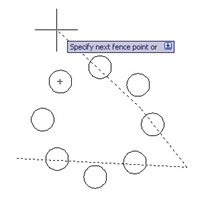 |
This action will select: | 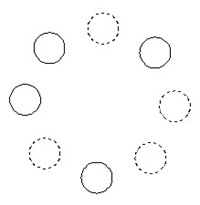 |
5. Window Polygon
This option behave as window selection, but you can define unlimited points for that window. Just type WP then [enter] to activate it. All elements inside the window will be selected.
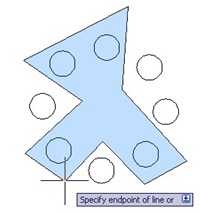 |
This action will select: | 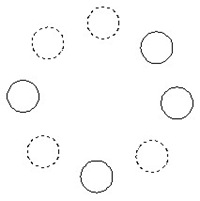 |
6. Crossing Polygon
Similar to cross window selection. CP
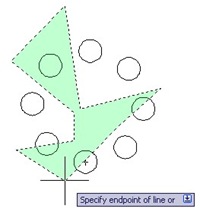 |
This action will select: | 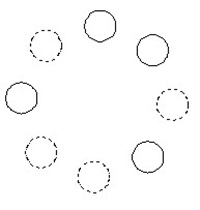 |
7. Touching Objects
When AutoCAD ask you to select object, type ‘FS then [enter]. We use ‘ for transparent use. Pick your object, then all objects touching it will be selected.
Select objects: ‘FS
Use ‘FSMODE to control chain selection.
FSMODE = OFF
Select touching object: 3 object(s) found. 3 found, 7 totalSelect objects:
Exiting Fastsel
FASTSEL is an express tool. So if you don’t have express tools installed, it might not work.
This selection is controlled by FSMODE system variable.
FSMODE = OFF (default), it will select objects touching your picked object only.
FSMODE = ON, it will select objects touching it, and all objects touching them too.
8. Cycle Overlapping Objects
If you have many overlapped drawing elements or close to each other, and you are too lazy to zoom in, you can cycle between them by pressing [shift] + [space]. Hold your [shift] key, and press [space] several times until you found your object. Release your keyboard key, then click your mouse.
9. Select Previous Selection or Last Object
Did you ever want to select your previous selection? Easy, just type P then [enter] when AutoCAD ask you to do selection!
What about last object created? Either the last drawn or result from modify operations such as copy. Type L then [enter]!
10. Remove/Add
Sometimes it’s easier to select all elements then remove some of them from your selection set. You can do this by holding [shift] and select object you want to exclude. OR, you can type R then [enter] to switch to remove mode.
To activate add objects, type A then [enter].
11. Lasso selection
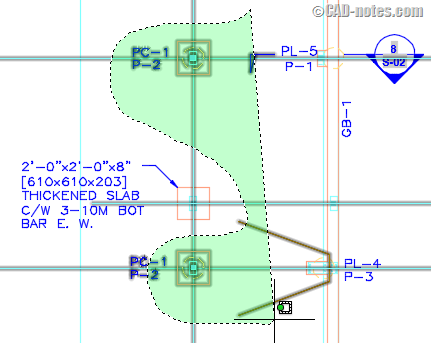
This feature is introduced in AutoCAD 2015. You can click and hold your left mouse then drag the pointer to make a lasso selection. Similar to window and crossing polygon, but you don’t need to type anything to activate this mode!
If you drag your pointer first to the right, it will be a window selection. But if after the first click you drag it to the left, it will be crossing window selection. Like you see below.
Bonus: Undo Selection
Here is a bonus option. You can undo your last object selection by typing U [enter] while your selection set is still active. This only undoing your last selection.
Have fun! You may want to go see about quick select and filter for more advanced ways.
You can watch all the techniques in this video.
Or watch it on YouTube: 14 Ways to Select Objects in AutoCAD.


[…] You can use Count to select blocks quickly. I guess we can put it on the list: 10+ Ways to Use AutoCAD Object Selection. […]
Can you recommend new or another method not mentioned in the 10 object selection method?
What are the factors in consideration object selection method
You can’t use AutoCAD for any length of time without knowing how to select objects. There are many methods, some more obvious than others. If you’re like me, you can probably get by 99% of the time with the first three methods I describe below. But there are many more selection methods that—in certain situations—can help you select objects more effectively and efficiently. Today I look at these AutoCAD object selection secrets.
It would have been nice had you included some more information about how sysvars control some of these. Like “pickadd”, or “highlight” or any others I don’t know about. It’s useful to be able to troubleshoot things
Thank you for the suggestion, Larry.
I think I will write a separate article about that!
Thank you Edwin
please send us all the short cut tricks for auto cad which will save time while working
thanks,
Another great tool is clicking all typical.
Click on said object (i.e. a symbol) > right click mouse and type T, this will select all similar (typical)
Hi Edwin, I found your paper on Acad selection very informative and relative to a problem that just seemed to happen to my authorised version of 2008 2 days ago. As an example of how it used to operate, to trim a line (1) that was touched by two joining lines (2 &3), I could select trim from toolbar, left click lines 2&3, right click to confirm then left click on line 1 and it would cut 1 between 2&3. The setting changed itself to not remember line 1 after line 2 is left clicked so I can reproduce the command with select trim then FS then shift space bar etc…. but why did it suddenly decide to update? Thanks for any help you can give. Bob
Hi Bob,
Thank you for reading CADnotes. Have you checked the PICKADD system variable? Type PICKADD then enter, type 1 or 2 then enter again.
I suspect the variable has changed somehow.