Many people think that learning AutoCAD is hard. It’s not. Yes, there are many things to learn. But using AutoCAD is not difficult.
The key is you need to learn one step at a time. Learn to walk before you learn to run. You need to understand the concept of each step; then you will be an AutoCAD guru.

This article is not a tutorial, but what do you need to achieve before you can master AutoCAD.
1. Getting Started

© tarasov_vl – Fotolia.com
First, you have to be familiar with the interface. Of course.
AutoCAD Interface
AutoCAD interface now is easier for new users. I know many AutoCAD veterans hate ribbon and other interface enhancements. But honestly new and occasional users say that they like the new interface. Learn how you can access and activate drawing tools, modify tools, and any other tools. If you already familiar with Windows application, then this won’t take too long. AutoCAD is a Windows compliant software, so should taste the same.
Navigate the drawing
Now try to open any drawing. If you don’t have it, start with a sample file. I always teach this first: navigation tools. Try to navigate through your drawing. Pan, zoom in, zoom out, and then zoom extend. Get familiar with navigation tools. Then it will be easier for you later when you start to learn how to draw.
Now you can start to create a new drawing and try to draw.
The rule is: create a new drawing using appropriate template. If you draw with metric units, don’t use imperial templates!
2. Drawing Tools

After you get familiar with AutoCAD interface and its navigation tools, now it’s time for you to learn how to use drawing tools. I know some instructors teach students how to use each drawing tools. But if you don’t get the concept, then you will forget it the next day. The next week at best.
How AutoCAD tools work
Drawing tools are very easy to use. Most basic tools name describe what they do. Line tool will draw a line; rectangle tool will draw a rectangle. Easy, right? What you have to understand is, every tool might have a different way to be used. It’s difficult to remember all of the steps in each tool. That’s what command line is for (or you can use dynamic input).
Command line is just like a road sign; it will guide you, so you don’t get lost. Try to activate a drawing tool, like a line.
Command: _line Specify first point:
Specify next point or [Undo]:
Specify next point or [Undo]:
Specify next point or [Close/Undo]:
After you activate the line tool, then AutoCAD will tell you what to do: specify the first point.
Define your point by clicking in the drawing area; then it will ask you again: Specify next point. Just click anywhere in your drawing area, don’t worry about the size or precise coordinate yet.
Now let’s try for circle:
Command: ARC Specify start point of arc or [Center]: C
Specify center point of arc:
Specify start point of arc:
Specify end point of arc or [Angle/chord Length]:
After I activate circle, AutoCAD will tell me to specify a start point, and give an option: I can switch from specifying a start point to a center point. This time, I type the capital letter in the option, C, to specify the center point. Then AutoCAD asks me for the center point, start point, then end point consecutively.
Follow command line; then you should be OK. Even for you who have used AutoCAD for years, you should be watching command line sometimes. Especially when you use a new version, try to find if there is any new option there.
3. Precise Input
After you get familiar with using drawing tool, then now you should get familiar with coordinate input. Precision is one of the advantages of using CAD. And your drawing is useless if it’s not precise.
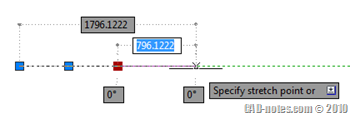
At this time you will learn about global and relative coordinate, then snap tools. After finishing this step, you will be able to draw precisely.
I will not discuss this further in this post; maybe I will write more in a separate post.
4. Modify Tools
Next step: modify tools. There are many modify tools. But same as drawing tools, the name should describe what they do. Or at least the icon will describe more. You can just let your pointer above the icon, and let the help tooltip expand and explain more.

You can also try to activate the tool, then press F1. It will open help file with the related topic. Many Windows users don’t realize this. They open then search the help file. And sometimes can’t find what they are looking for.
The Same rule applies here: keep watching the command line!
5. Object Selection
After you playing with the modify tools, now you should learn about object selection. You will need to select objects when you modify or manipulate them. Selecting one object is peace of cake. But if you have also need to modify drawing then you should learn more tricks.
I have written about this before. When you get to this step, maybe you want to read more advanced object selection here.
You can use noun-verb or verb-noun selection to modify objects. But (I think) the default is verb-noun selection, contrary to Windows default: noun-verb selection.
6. Annotation and Styles
Ok, now you can draw, you can modify your drawings. Next step: creating annotations and understand using styles.
What is annotation? Everything in your drawing that’s not categorized as geometry. It can be text, hatches, dimensions, tables, etc. Using annotation tools should be easy, after what you’ve been through from step 1-5.

The problem in this step might be setting up the annotation styles and scales. Styles are used to defining how your annotation will look like. There are a lot of option in styles, but what usually confusing is options related to the scale. What size I should create my text, so I can read it clearly when it’s plotted? What size are my dimension arrows should be set?
Thanks to Autodesk, now you can set this comfortably using annotation scale.
If you work in a company that has to establish a drawing standard, you might not need to set styles anymore. Just use a template that already has all the styles, then use it.
7. Drawing Management
After learning AutoCAD from step 1-6, you should already be able to draw with AutoCAD.
Now you need to get to be more productive. Remember, drawing with AutoCAD is not just about how fast you can finish the drawing. But your drawing also needs to be easy to be modified. Not only by you, but also by your team member. You need to manage your drawing and objects inside it.
In this step, you will learn about layers, layout, and may be sheet sets if you want to go further.
If you want to learn AutoCAD Sheet Set, you may want to purchase our Sheet Set e-book here.
8. Reusable Content
If you see an AutoCAD drawing, many objects are repetitive. You can see symbols, standard parts, common objects and much more. Yes, you can copy it multiple times, but we want to be more productive.
Block is crucial to help you working with repetitive objects. Not only it’s reusable, but block definition allows you to update all instance in your drawing.
If you want to go further, blocks also allow you to add attributes as block ID. And block allows you to report any block’s properties. You can create schedule easily. Or report multiple points coordinate.
If you want to learn about the block from very basic to advanced, you may want to review our e-book here: AutoCAD block best practices.
9. Manage your Standard
Everybody have a standard in their drawing, and even you don’t realize it. It is a good practice to have them compiled in your templates. Furthermore, to maintain your standard, you can use CAD standard. You can also have your reusable content to manage your drawings standard.
Having standard will be easier for you and everybody who is working with you. And you will become more productive after implementing your standard.
10. Design Collaboration
You will collaborate with the others for sure. You might have to work with your partners in your company. It’s a waste of time if they have to wait until you finish, close your file, then they continue your drawings. Or worse, they copy your files and work separately with you. It’s difficult to track changes if you do this.
You can work simultaneously with your partners if you divide your design into separates files, then use reference or underlay. Because they are separate files, each of them can be opened by a different person. To separate file will also keep your files simple, avoiding you from the killing ‘fatal error’ message. The more complicated your file, the more chances it will get corrupted.
Learn about XREF. And maybe you want to centralize database with Autodesk Vault.
11. Develop Your Workflow
I saw Autodesk Official Press (formerly known as Autodesk Official Training Course) a few years ago. They are good books, but it doesn’t teach how to use it in a specific industry. It teaches you how to use AutoCAD in general.
If your instructor has an architecture background, he/she might teach you to draw with his/her workflow. How he uses AutoCAD. It might not be suitable for you who work in a different industry.
After using AutoCAD for a while, you will be able to develop your workflow. It will suit you, and you will become more productive. Don’t stop at what your instructor teach you; there are always new things to learn.
12. Keep Practicing
Practice makes perfect. You will get better with a lot of practice. AutoCAD masters are they who use it intensively. I think nobody will disagree with this. Try to draw a real project. Don’t just drawing lines with no meaning.

If you don’t have a project yet, find a sample then draw it. You will find problems when you use it.
Become an AutoCAD master is not only about knowing everything in AutoCAD. You need to use the right tool for your workflow. If there are anything else you want to add, please do. You can write in the comment, and I will add them here. You will be credited.


[…] Is CAD software hard to learn? […]
This site has quality information about AutoCAD if you become an architect then you need a laptop for AutoCAD. Check This article before purchasing the Laptops.https://pickcheaplaptops.com/best-laptops-for-architects/
How can I learn Autocad electrical
Thank you so much for giving me such amazing information. You can learn more about it on Best Graphics Card For AutoCad.
When I enter fence command but there is no result found
I would like to learn how to do floor plans. It’s for mot stations. Floor plan of the building before it goes to vosa
I learned autocad in the 1990s on autocad 11/12. I still know how to use it, but, a few things have come out. I have seen people working on autocad with guide line sizes, colors, & layer on the left side of the working area of the drawing. Also they have different text sizes, colors, & layers, different dimersion text sizes, colors, & layers. Is there a place I can get this done? Will I need to create this?
Hi Valdez,
I think you are referring to Tool Palettes.
Try to read this: https://www.cad-notes.com/creating-your-own-autocad-palette/
Thank you for very help guide. You also need a best laptop to start AutoCAD practically. You can check the list of best laptops for AutoCAD here https://laptopsstudio.com/best-laptops-for-autocad/
[…] You can also learn more about mastering AutoCAD guide here. […]
Sir, I want to learn auto card, is high logical thinking and drawing ability is needed for auto card?
Hi Is this on line course if yes what will be the course fee and duration to learn AUTO cad completely
Your reply will be highly appreciated.
Thanks
Sincerely