Can I add pattern to my roof in Revit Architecture?

Sure! Image above is actually plotted from sheet. You can apply surface pattern to your family for this purpose.
Open your roof type properties, edit the material. Duplicate any material from the list, rename it. Now we will apply pattern to this material.
Understanding Pattern in Revit
Surface vs Cut
If you have no idea what’s the difference between surface and cut pattern, lets discuss about this first. When defining your material, you should be able to set these two.

Cut pattern will only show if you cut an object in Revit, while you can see surface pattern on the object’s surface. Cut patterns are usually used to show objects materials. For example, ceiling will use surface and brick will use cut pattern.
So, we’ll use surface pattern for our roof. Click ‘…’ next to dropdown box on surface pattern area.
Drafting and Model Pattern
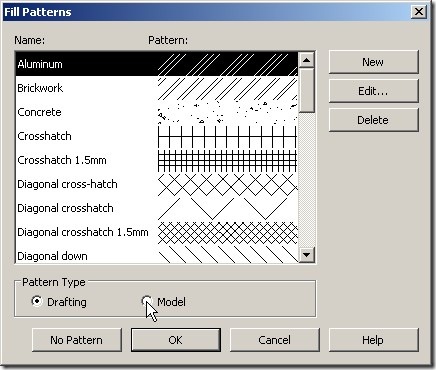
Now, you should aware about drafting and model pattern in Revit. What is the difference?
- Drafting pattern is used to represent materials in your drawings. The scale and orientation will be fixed to your drawing sheet.
- Model pattern represents actual size in your model. For example, ceiling, wall, and of course roof pattern.
You can try them both on different object, try to change the drawing scale. Open the 3d view, try to rotate your model and change your drawing scale.
Use existing pattern, we will learn about using custom pattern later.

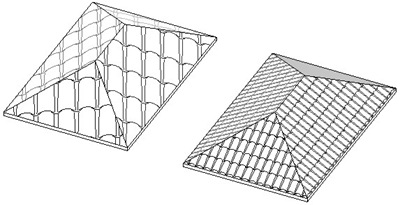
The one on the left using drafting pattern at scale 1:50, and roof on the right using model. Compare to scale 1:100 below.
Using AutoCAD .pat
Now, you should realize that Revit doesn’t have roof pattern. You can import AutoCAD .pat to add more pattern. Doesn’t have AutoCAD .pat library ? Don’t worry, you can download them here.
You can’t use AutoCAD .pat directly. You have to add a line in your .pat file. Open the pat file, you can use notepad to edit this file. Add this directly below the name.
Save your file.
;%TYPE=MODEL

Now, back to Revit. In the fill pattern dialog box, click new. Click custom for this new pattern. Click import to define your custom pattern. Select file that you have edited.

Now you should have seen the changes in the preview. Adjust the scale if necessary, especially if you are working using metric.
Click OK until all dialog boxes are closed. That’s all ;)


Which pat file is for model pattern? I am using the latest version.
Nice and wonderful job you are doing here. I give you kudos on it. Keep it up.
Thanks for share your knowledge
Maybe you must redownload again, maybe that's file corrupt
Hello Brother,
This way absolutely work, i use revit architecture 2009, thank you very much
Hi Carlos,
Can you send me your pat file? I will try to take a look.
Hy, Edwin
Revit says that there is a syntax error in line 3 of the coppi5 .pat file, i.e., the first line of code with the definiton of the first line family. Can you help me there?
Thanks