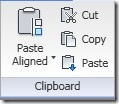
How can we copy Revit objects to different levels? You can do it using copy tools from Revit ribbon, of course. You can open elevation view, or even 3d view and simply copy them. But not all type of Revit objects can use this tool: have you tried to duplicate walls to different level using this tool?
Sometimes it’s also difficult to select objects in elevation views. You can use copy to clipboard if you want to paste them to different level(s) at the same position.
Open your plan view, select objects you want to duplicate. On your ribbon, contextual tab, clipboard section, click copy. Or you may press [ctrl] + C just like any other Windows apps :)
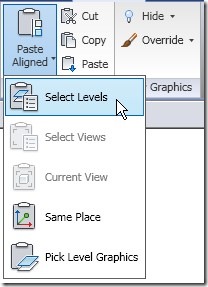
Now, click paste aligned. From the dropdown menu, click select levels.
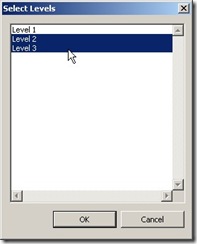
A dialog box will be opened. Select the levels you want to place your copied object. You may select multiple floors by holding [shift] or [ctrl]. Click OK.
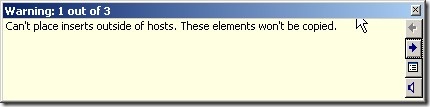
additional info: If you copied hosted components, and they can’t find their hosts on the targeted level, you might see this warning.
See more of our Revit tips here!


Beams in revit copy to different levels with errors due to start and end level issues which need to be resolved for each beam individually. This becomes a huge task . Making a group of the beams and copying to different levels , also creates the same error.