Do you need to create a high resolution image from your AutoCAD drawing? No, this is not about AutoCAD rendering. This is about how you can get high resolution image from your lines and arcs. It might be layouts, elevation views, etc. I had this question several times. You can just plot your model/layout.
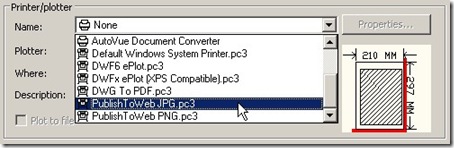
Try to open your plot dialog box. You can see a plotter named PublishToWebJPG.pc3. Use it, you will get a JPG image with fair quality. Ready to be embedded to your Power Point for your presentation.
JPEG probably is the most popular image format for presentation. But if it’s still not good enough… how about BMP, TIFF, or TGA?
You can add more plotters for those file types. Open your control panel. You will see Autodesk Plotter Manager icon here. Double click to open it.
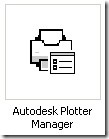
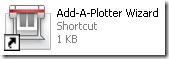
Basically this will only open another folder. This folder contains all plotters that can be used by AutoCAD. To add new plotter, double click Add-A-Plotter Wizard.
This will bring you to a wizard. Click next at the first page.
On the next page, select My Computer. Then click next. On the next page, you can see a list of manufacturers, and the models. We want to add TIFF this time. Select Raster File Formats as manufacturers. Then select TIFF Version 6 as plotter model.
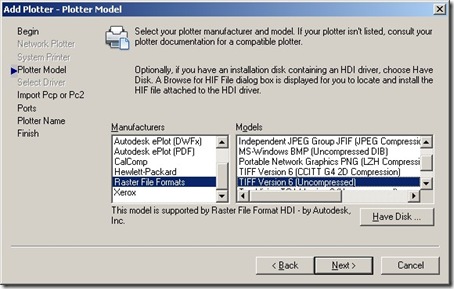
You can also select BMP or TGA if you like. Now, you can simply click next and finish through the rest of this wizard. Open your AutoCAD, open plot dialog box. You should see your new plotter there!
Use them to create your image. You should be able to get high quality image from your drawings. Choose the format that’s appropriate for your purpose. Consider the quality and file size. You will not want your program to take a long time loading the images during important presentation!


Hello Edwin,
Thanks for all the tip you shared! I’m just wondering what file to export from Civil 3D surface (Digital Terrain Model) to be used in Rivet. Does Landxml file work when importing to Rivet? I am not really familiar with Rivet so not sure if Landxml will work but tried it in In Roads/Microstation and it works fine. I’m an AutoCAD/Civil 3D user and our sub (architect) is asking me to convert my civil 3d model to rivet so he can see it.. Not sure if I can just send him the surface by using Landxml file. Any help will be appreciated! – Randy
Randy,
Are you referring to Revit? Revit itself can’t import LandXML, only 3D contour drawing.
However, if you install Site Designer plugin for Revit, it has capability to import LandXML. The plugin is free for subscription customers.
It’s very useful topic Edwin. Thanks
If you want really hires images, you can add a custom paper and specify a very high number of pixels which will generate a very high resolution JPEG.
Thanks for the procedure, we do need to create high res from dwgs, this looks to be the most efficient way to do it without third party softwares.
THANKS !