 If you are going to do some customization in AutoCAD, then it’s unavoidable that you will have to change some system variables. I’m not good in customization. So having a system variable list is very helpful. I know there are some websites provide this list. But some of them are for old version of AutoCAD. Some of the sys var might already have been removed. Some might have been changed. And if you use old version of AutoCAD, it might not even existed yet. Why not you try to look inside your AutoCAD?
If you are not familiar with system variables, they are the variables that control your AutoCAD behavior. Every options you save, current layer, color, or lineweight, etc.
For example, we can turn on/off object snap by pressing [F3] – if I’m not mistaken it was not F3 before, right? –. But if you are creating a new command like in this example or this example, let’s say you want to turn off OSnap temporarily, you’ll have to use system variable. You can change the SNAPMODE value to 0 (off) or 1 (on).
Another example, if you want to create a button that change your active layer to ‘Boundary’ and activate line, you have to use system variable to change the current layer. you can use CLAYER to control the current layer. There are a lot of things you can control by using system variables.
So how you can see the whole system variables? Simple.
Using SETVAR
Just type SETVAR [enter] then type ? [enter]. Enter once again to see the whole list. You need to press [enter] several times to see them all.
Command: SETVAR
Enter variable name or [?] <CLAYER>: ?
Enter variable(s) to list <*>:
3DCONVERSIONMODE 1
3DDWFPREC 2
3DSELECTIONMODE 1
ACADLSPASDOC 0
ACADPREFIX “C:\Documents and Settings\edwinp\application
data\autodesk\a…” (read only)
ACADVER “18.0s (LMS Tech)” (read only)
ACISOUTVER 70
ACTPATH “”
ACTRECORDERSTATE 0 (read only)
ACTRECPATH “C:\Documents and Settings\edwinp\application
data\autodesk\a…”
ACTUI 6
AFLAGS 16
ANGBASE 0
ANGDIR 0
ANNOALLVISIBLE 1
ANNOAUTOSCALE -4
ANNOTATIVEDWG 0
APBOX 0
APERTURE 10
AREA 0.0000 (read only)
Press ENTER to continue:
Using System Variable Editor
If you have express tools installed on your computer, it’s even easier. You can use system variable editor. Not only see all the variables, you can also backup your current variables and restore them later.
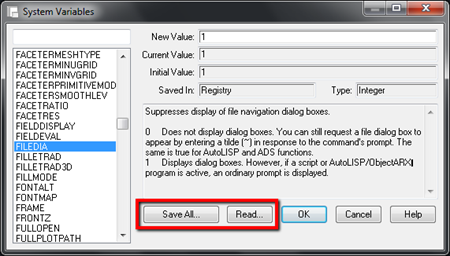
See about system variable editor here.


[…] Complete list of sys vars […]
Question…
How I could set what I set as display i.e. properties, command prompt line and so …. to be the same as I set next time I am opening the application (CAD16)?.
Many thanks
Here is a complete list of AutoCAD System variables in a PDF file.
If using LT, with no access to Express Tools, you can save the Command Line History and convert that to an ACAD script for restoration of your system variables.