
AutoCAD Command line is a very powerful feature, and I don’t think replaceable. I know there are a lot of pros and cons about using command line in AutoCAD. But why not use both? Personally I like using command alias as shortcut, but I found that it’s difficult for people who rely heavily on this when learning other CAD application. But doesn’t matter. When you use AutoCAD, you’ll want to use it optimally right?
You can see the command alias list and customize your own shortcuts by accessing edit aliases in ribbon, manage tab, customization section.
Or if you use AutoCAD classic interface, you can access it from menu tool>customize>edit program parameters (acad.pgp)
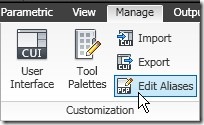
This will open your acad.pgp file in text editor (by default it’s notepad).
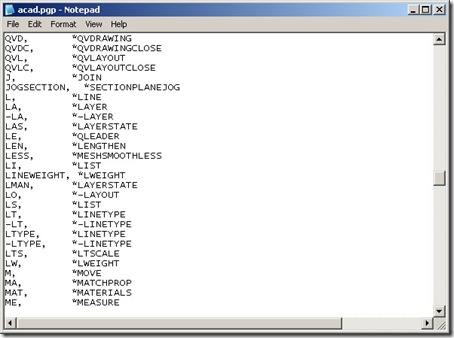
As you can see, this is a list of all your AutoCAD command aliases. They are your shortcuts. Mine is default, so aliases for line is L. When I type L then [enter] will activate the line tool. Typing LA [enter] will open the layer manager. Etc. They are very useful shortcuts to work faster!
AutoCAD commands don’t work like any other Windows applications. In Revit or Inventor, you simply press two keys as shortcut to activate a tool. No need to press [enter]. But in AutoCAD you can use single character, or more than two.
You can edit the command aliases and change them to what you want. After you finish, save this file. You might need to restart your AutoCAD after doing your modification. (Or you can run REINIT to reload your acad.pgp – thanks to Alex Serdakowski)
Updates
I have comments from Alex Serdakowski and Marty saying that there is another way to modify AutoCAD command aliases easily. We have to use an express tool to do this. This tool name is Command Alias Editor. You can access it from menu: Express>Tools>Command Aliases.
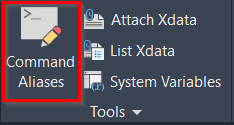
In the Command Aliases Editor, you can edit the alias comveniently.
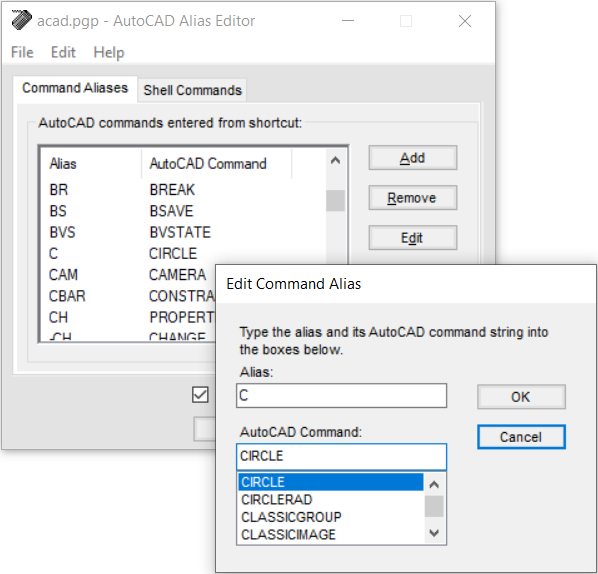
It’s a great tool that I missed. If you haven’t had express tools installed, then you can’t use this tool.
Where’s the Complete List of AutoCAD Command?
You can see the whole AutoCAD command in AutoCAD help file. See under command reference>commands.
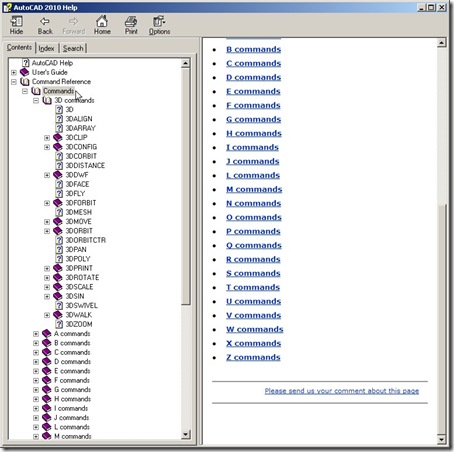
But do you really want to remember all of them? :)
So what is your favorite custom shortcut? I have some friends that use the close keys on the keyboard so they can access it quickly. Even they don’t mean anything anymore. For example, CC for the copy command. It’s faster than using CO or CP!


Hi,
Im using autocad2010 3D. how could i change plane from xy to yz or xz to draw/sketch?
i am employeed in a manufacturing company (producing mechanical parts like shafts, rollers, etc. ). i dont have training in 3D yet. i want to know what application/software is best to use to create drawings in 3D.
do u have any idea what software or cad program have history of commands and drawings (by clicking the command/history you used you can select the portion of drawing and edit it)?
Thanks in advance,
Eira
I recently tried entering alias's thru the edit alias command but when I hit save I get a window pop up saying "access denied", Our I.T guy said I should have full access to everything in ACAD. Any suggestions?
how to put the same level elevation of two lines?for example i want to cut two lines but i cannot, the two lines are not in common elevation, if u view in top u cannot see the difference. what is the command should i use?
hi there I am just using the new aliasedti function and I think it is great ,
But is there a way to ,like in autohook to have the enter function added to the shortcut aswel?
so if I define Q for polyline that I donot have to rightclick or press enter after te Q keystroke?
Thanks in advance
Peter
No, you can't.
That is exactly why I wrote that Autodesk supposed to change the command line behavior. It works great for veterans, but for the new generation that use many (new) applications, command line can be annoying.
If people are familiar with DOS, then command line is great. But when you are using iPhone or iPad, playing Wii… then command line maybe feels a bit 'old'.
But I do understand that this will be hard for existing AutoCAD users, and will not be easy to please them both.
So for the new guys, probably ribbon shortcut is the answer. Microsoft also use it anyway, so you can use it in Microsoft Office and other applications.
Like anonymous said there is a better way, and if you like the command line, that better way is accessible via the express tool command ALIASEDIT
Thank you Alex, for the valuable information.I never aware about this before.
There is an easier way of accessing and managing AutoCAD Aliases. There is an Express Tools function that does just that.In the Express Tools tab, the Tools section contains a Command Aliases button that calls a dialog box listing all Aliases (the same that are defined in the ACAD.PGP file). It lets you Add new Aliases, Remove or Edit existing ones. Also, when you exit the Command, it automatically reloads the ACAD.PGP file so you have access to your new or modified Aliases right away. By modifying Aliases directly in the ACAD.PGP file, you either need to reload AutoCAD or issue the REINIT command to reinitialize the ACAD.PGP file.Alex Serdakowski