 In AutoCAD tutorial series I’ve posted, we have created our reusable contents, and use it to draw a building plan. Now, we are going to create some schedules from it. We are going to create a door schedule, column schedule, and a wall schedule. It’s not just Revit that can do that!
If you have created your own floor plan, you can use it. Or simply download this one for this tutorial.
Open your file (or mine). My file will look like this. You should be familiar with these objects :)
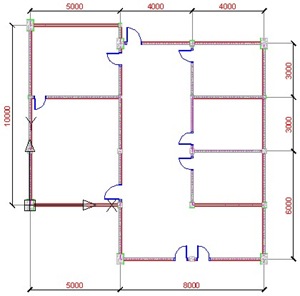
Door Schedule
We can create a schedule using data extraction. It’s on your ribbon bar> insert> linking & extraction> extract data.
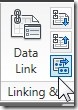
This will open data extraction wizard. I’ve posted about this before, to create a report of lines length and coordinate, so I won’t be write many details this time.
Page 1 – Begin
This is the first time we use data extraction, so use create a new data extraction. Click next, and when AutoCAD ask you for file name, give it door schedule.dxe. You can use this file again later when you need to create another door schedule. Save it.
Page 2 – Define Data Source
AutoCAD give you a choice: you want to create a data extraction from file(s) or from some objects in your drawing. If you have several floor plans in one drawing, you can select them separately. But now let’s just use drawing/sheetset. Click next.
Page 3 – Select Objects
AutoCAD will recognize all type of objects you have in your drawing. Now we need to filter what kind of objects to be included in the schedule. Let’s just select the SingleDoor, and left the rest unchecked. Click next.
Page 4 – Select Properties
This time we will need to define which properties we want to be included in our report. We only need the door width. Let’s filter it first.
On the right column, category filter, uncheck everything except Dynamic Block. Now it should be only 3 properties left. Check only Width.
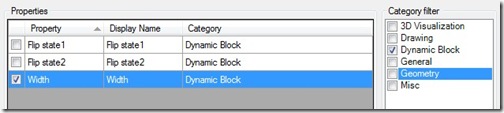
Where’s this width property come from? We define it by renaming the parameter to width. You can find more details in this dynamic block tutorial.
Page 5 – Refine Data
In this page you will see your schedule preview. Nothing hard here. You can sort your data by clicking the header name. Or you can arrange the column by dragging the header name. You can also choose several other options here. Try them, you can see the preview right away. Click next after you’ve done.
Page 6 – Choose Output
On the next page, we can select where we want to put this schedule. You can put it in your drawing, or save it to external file (excel, database, or text).
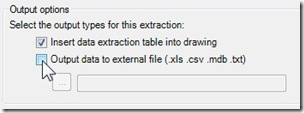
Click next.
Page 7 – Table Style
If you use your own drawing, you might not yet set your table style. If you use mine, just use the standard table style. Type the table title ‘Door Schedule’. Click next.
Page 8 – FInish
Nothing here :) It’s just telling you you’re done. Click finish. Now place your table to your drawing. Or if you choose external file, then you’re done.
Column and Wall Schedule
So what about column and wall schedule? Sure, you can create them too. You should try it by yourself.
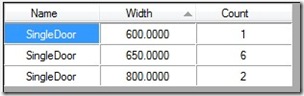
Pay attention to door and column schedule. Remember we only have one door block and one column block. But in this schedule, we can see 3 door type and 3 column type! Yup, their size are different. Data extraction can recognize it. It’s great isn’t it?
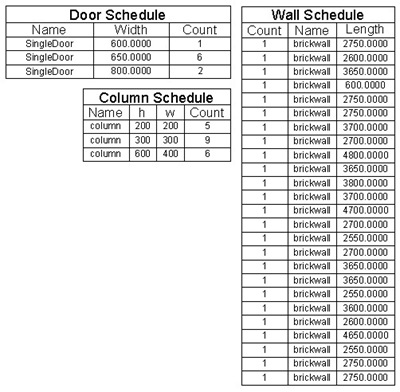
Unfortunately for wall schedule, we can’t sum them all and only list wall with the same name. It will only group wall with the same length and name. If you want to do more than that, you should choose the output to external file. Edit it in excel, then import it back. But at least you don’t have to count them manually ;)
You can also use data extraction to report any kind of data your drawing have. Points coordinate, line length, everything! I wrote how to report line length, coordinate, layer, and color here. Some one ask me that question to create laser cutting estimation.


[…] να δημιουργήσει δικά του visual styles, δεν μπορεί να κάνει data extraction και τέλος δεν υπάρχουν πουθενά τα […]
Thank you very much for this!!
Sure I tested linking a table to table a while which worked… so can total walls say with out going external and then importing again
Hello Edwin,
First of all appreciate you articles. Very useful information for the industry. I have a question regarding this article. Can I get the total of the count and also the wall length.
Also I write programs with lisp. Middle level. I do have a lot of great concepts with cad automation. It will be very benificial to users if you could publish posts related to it.
Best regards.
I tried typing in every version of data extraction and data linking on AutoCAD 2015 with no luck of doing what you explain in this tutorial. The only thing i can find is an external data link which is not what you talked about in this post. Please help.
Can u give me detail idea about MVSETUP??
hey Edwin i m using CAD 2012 but there is no option for Data Extraction pls help me
Data extraction is already there since AutoCAD 2006. Are you using AutoCAD LT or full blown AutoCAD?
Great Job Continue…
Hi Edwin, I am trying to update a fire map in autocad. We have 700+ fire devices and each time we add/remove a device the whole numbering system in the fire panels get changed. It is really difficult to change the device numbers manually in auto cad when this happenes. I wonder whether we can link the fire device numbers with excel in which case when I change the spreadsheet, the autocad drawing fire device numbers will update as well?
Hi Lou,
You may want to try using ATTOUT and ATTIN to work with Excel. It's not bi-directional, you need to export, edit and import the value.
Try to read this: https://www.cad-notes.com/2013/05/edit-block-attri…
Hi Edwin.Can you get an activity list from Autocad drawings to create a CPM in Microsoft Project?.It would really help if you can do this !
Hi Ayeus,
It's not possible to do it with AutoCAD alone. You can use Autodesk Vault for simple activity list (check in and checkout date) or PLM360 for more advanced data management.