 Previously, we have created door as AutoCAD dynamic block. We add some actions so this door can be resized to an available width in our list. But it’s not perfect yet. At least not for our purpose. In this AutoCAD tutorial, we are going to add more actions so this door can be flipped, and will align automatically to our wall orientation.
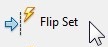
Open your AutoCAD file that contain the door block we have created on previous tutorial. Open that block in block editor. We are going to add two flip actions. Let’s just use parameter sets. Parameter sets basically just the same with placing parameters and actions. Only it place them both right away. Sometimes this is harder to control. But flip action is quite simple, so I think this will be safe :) In block authoring palette, open parameter set tab. Activate flip set.
We are going to add one flip action first. Click first and second point at mid point of our door frame as below. This will allow our door to be flipped vertically.
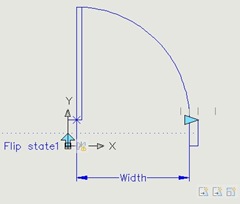
When we placed the flip action set, the only thing we define is the reflection line. Look at the action button, we have a warning sign on it. It means we haven’t give all the data it’s required. We haven’t define which objects will be affected by this action.

Click on the flip action button, right click. Select action selection set>new selection set from context menu.
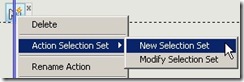
When AutoCAD ask you for objects, type ALL [enter]. Do not try to select objects, just type ‘all’ to select all objects. I’ve tried to select by crossed window, and my dynamic block didn’t work as expected. I suspect that there are some objects are not selected. It shows different numbers on how many objects selected.
Try to test your dynamic block, and see if it works fine. Now let’s move on, we are going to add another flip action. Add it so we can flip our door horizontally.
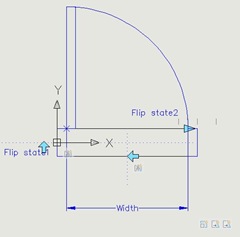
Just like before, add all objects to be flipped. Test it. You will see that our insertion point is shifted. There is no way to eliminate this error by using parameters and action only. At least there’s no way that I know. Even in door sample from Autodesk, they can’t keep the insertion point at it’s place. We can use dimension and geometric constraints in AutoCAD 2010 (or newer), but not with parameter and actions. I will write about parametric constraints later, after we finish our plan.
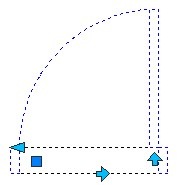
However, we can minimize this impact. I hate to move my door after I placed it. So I add one more stretch action to our linear parameter. I add the stretch frame outside the flip parameter. I want this parameter also stretched when my door is resized.
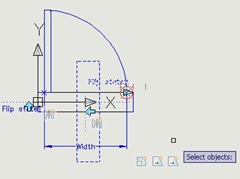
I also change the distance multiplier to 0.5. Changing this value will keep my flip action at midpoint of my door width. (Door width changes)/2.

Save it, and test it. When we stretch it first, then flip it horizontally, then the insertion point will remain at it’s position. But if we stretch it at this position, then the insertion point will be shifted. At least this is better.
The last parameter we will add is alignment. Alignment don’t need action. We just add this parameter, and it will work.

This is our finished door.
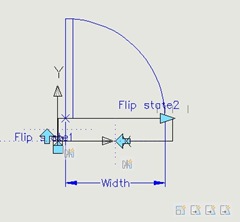
Save it, close block editor. Try to place some wall, vertical, horizontal, and angled wall. Try our door to these walls :)
I hope you like this trick. If do you, spend some time to see our AutoCAD tips list here!


could someone please help
i have a dynamic block with a linier parameter (using action strtch)
let say the block is just a rectangle 200x100mm and the parameter is for the width = 200
on one pc it works fine (when i insert the block click on the parameter i see the exsisting value (200) in the prompt and enter a numerique value lets say 1000 it streches to 1000 in total so now my block is 1000x100mm
on another pc when i do the same it will add to the exsisting value 1200x100mm
someone know why ??
thanks
thank you sir
Thank you Edwin!