 We have finished with modeling our building. We created walls, floors, roof, staircase, railings, and ceiling. We can consider it finished, but we will add some objects from library to complete it.
Nothing is hard about Revit components. At the first time, I didn’t intend to write about this and just let you explore about this by yourself. But I feel this tutorial will be incomplete if we don’t cover this topic.
Any objects than is not part of your building model is a component. It can be furniture, lights, plants, entourage, etc.
Component Tool
You can place any components by using component button in home tab.

But you may use site component or parking component in massing & site tab> model site. All of them will place the same component.
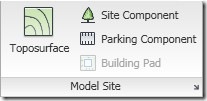
The differences are,
- Using component button will enable you to place any object available in your Revit project file as generic component. While Site Component only allows you to place site objects such as plants and parking component. When you have many types of objects, filtering them by using different tool will be helpful.
- Placing your object as site component will automatically set your site topography as it’s host. We are going to discuss about site later.
Find and Load Families
Placing component should be very easy. Just activate the component tool, select what component you want in type selector, and click on your model to place it. Simple. You might want to load family if you need object that’s not available in your Revit project.
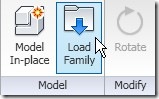
Revit has some default families come with the installation. You can also find a lot of Revit families on the internet. You can try search your component using Autodesk seek. And of course, you can create your own.
Placing Component
As I mention before, placing component is peace of cake. As easy as 1,2,3 : activate your tool, select your component, then place it! However, there are several things you should know.
Some of Revit families are hosted components. Lighting fixtures can be placed on ceiling or wall. Site components can be hosted to your site topography. But the others can be placed anywhere.
You can place furniture without finding it’s host. But you only can place wall based lights on walls. And you have to open your ceiling plan to place your ceiling based lights.
For your exercise, place furniture, lighting fixtures, and site components to your Revit model. Shouldn’t be hard :)
Next, we will start to annotate our views. We will start with dimensions.
*You can purchase this tutorial compilation in an e-book. Find out the books in our E-Store .


