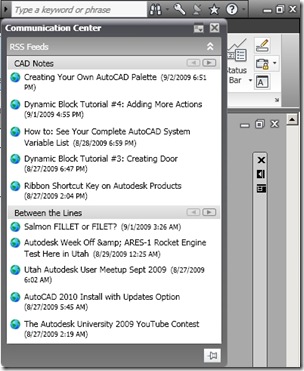
Have you noticed that you consistently see a pop-up message on the top right of your Autodesk Applications? Either it’s Revit, AutoCAD, Inventor or others. It’s the communication center. If you are connected to internet, then communication center will automatically check if there’s any new information available.
This is not my original idea, I saw someone (sorry I forgot who it is, so I can’t give him credit for this idea) tweets saying that he is enjoying seeing news update from info center. Why not? AutoCAD users (and other CAD users) spent most of their time on their CAD apps. Seeing updates without opening other apps will be fun! Either news updates, or CAD Notes updates!
Click on communication center.
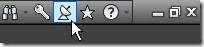
The communication center will open. Click on AutoCAD Info Center Settings. It’s on communication center title bar, right next to close button. There are some settings that you can play around. But let’s go straight to RSS Feeds.
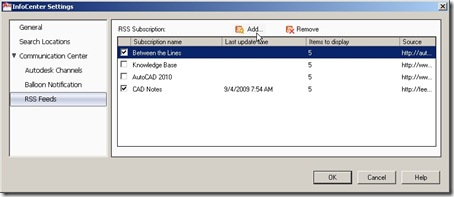
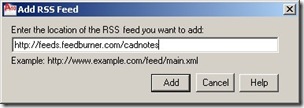
You will see a default list of RSS subscriptions. You can add, remove, or simply turn off subscriptions you don’t want to follow. And you can add new subscription. For example, you can subscribe to CAD Notes blog RSS. Click add, and paste RSS link to the text field.
After you finish, you will be notified if there are any updates on blogs you are following. Or, you can click on communication center, and it will show you latest posts from those blogs.
How can you get the RSS link? You can open a website you want to follow. Find the RSS icon. Almost all major sites and every blogs have RSS link. Right click on the icon, and select copy link address (may be different for different browser, I use Chrome).
Now you can still following updates from your favorite blogs and websites without leaving your AutoCAD! I hope you add my blog :)