I have written about 10 ways you can use to select objects in AutoCAD. But sometimes selecting object with those methods are not enough. When they are all get to crowded, we need to filter out our selection based on their properties. Yes, we can do it using AutoCAD filter selection. But this time, let’s just use Quick Select.  You can find Quick Select button on AutoCAD ribbon> home tab> utilities panel. Alternatively, you can type QSELECT. This will open a dialog box where you can select your objects properties.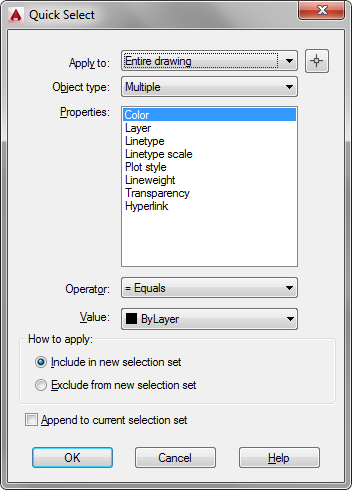
Selecting Property
First, apply to. You can filter objects in entire drawing or by your selection. Object type will show you list of types available in your drawing. If you only have one type of object, then you will get only one type of object. Properties, self explanatory. Select which property you want to filter. Only one. You can’t have multiple selection here. If you want to filter by several properties, you need to use QSELECT several times. Operator, I think you might already familiar with it. Value, the property value. So, if you want to select all lines that’s not in layer TEXT, how do we use the operator and value? We use ‘not equal’ in operator and ‘TEXT’ in value. 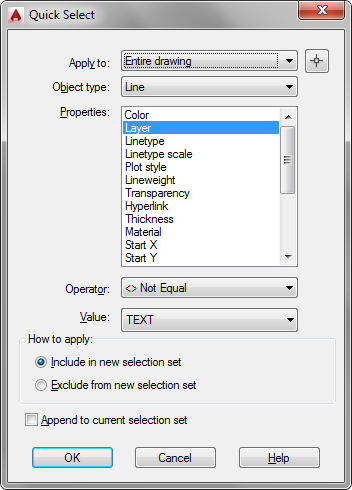
Include/Exclude Selection
Let’s take a look to ‘how to apply’ area. You can include or exclude from your new selection set. Do you want to add them that meet your criteria? Then select include. Or if you already select several objects, and you want to exclude them that meet your criteria, select exclude. The last option: append to current selection set. As I mention before, we can’t have multiple properties selection at once. So if you want to select all lines AND text with red color, you need to use QSELECT twice. When you use it for the second time, don’t forget to activate the append to current selection set.
Example
If you want to select all lines, with linetype 1, and color 5 how do we do that? First activate QSELECT, filter them by linetype. Include them in new selection set. Click OK. Now you have selected all lines with that linetype. Now let’s do it again. We need to filter them again. Activate QSELECT, then filter them by color. You need to include objects that meet this category, so don’t forget to select include. Another sample is you can try to select all vertical lines or horizontal lines easily here.


Hello
by QSELECT, i want to select multi lines with same length, however it doesn’t work until you input an integer as specified value, how to resolve this issue?
There is a basic tool called “SELECTSIMILAR” instead of using QSELECT.
Is there a way to run quick select without the dialog box? for instance, is it possible to run through the qs options using a script instead of having to manually select? I run LT and often quick select the same stuff on a regular basis and would like to automate the process.
No. You probably would be interested to use FILTER if you select same objects on regular basis. You can save the filter condition and use it again later.
Try to read this: https://www.cad-notes.com/using-autocad-filter/
thank you. still pretty fiddly, but doable.
Thanks Very Much, it helped me save quite a lot of time
Thanks a lot.. you have really survived me.