I had this question yesterday. Someone asked if if it’s possible to link an object in AutoCAD to another file. So if he needed to see the components specifications, or 3D model of a certain component from P&ID drawing, he can simply click the link. I said, have you tried using hyperlinks?
Hyperlink maybe not a popular feature in AutoCAD, but it can make some use. You can add hyperlinks to an object. The hyperlinks can be pointed to the manufacturer website, to a word document that contains the installation procedure, or to excel file that contains product specifications.
Adding and Using Hyperlink
Adding a hyperlink is very easy. Activate hyperlink from insert tab, data panel.
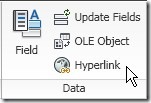
AutoCAD will ask you to select object, then you will see this dialog.
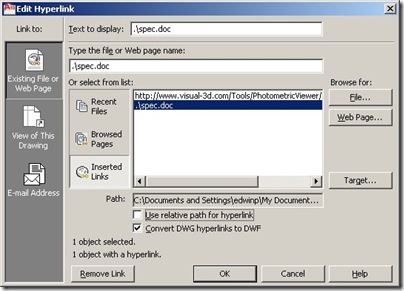
In this example I add link to specification document in my local computer. In the real world, you might want to point it to a file on your server. Or a page on website.
Not only website link and local files, you can link to layout or saved view in your model.

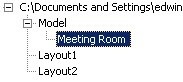
You can also link to email address. Maybe you want to link a certain item to vendor contact person for maintenance or something. This can be useful for building maintenance purpose.
Hyperlink Within Block
If you insert and place a block, then insert a hyperlink, it will only attach to an instance of that block. When you insert another block with the same definition, then the new block won’t have the hyperlink. Unless you copy it.
If you want every block links to a certain file/website, you can edit the block and insert hyperlink to the elements. With this method, not only you can define the hyperlink once. You can also insert several links to different elements. Including nested block.


do you know how to create a short cut or button to pick the URK without holding down the control key
tomr@chemeketa.edu
Tomr,
I don't think it's possible.