 Autodesk introduced the Microsoft Office 2007 look alike to Autodesk products since version 2009. They introduced ribbon interface, and even a new menu structure in Autodesk 2010 version. Try to click the big A letter and you will see new file menu. You may hate it, but many new users may like it. However, I think we do need to get used to it. If one day it is become a ‘Windows compliant’ standard, then all Windows applications would look like that. Ouch!
Here are 10 AutoCAD ribbon tips I found on the internet (and one from my blog ;) that you might need to know.
AutoCAD UI ~ Best of Both Worlds is Flexible with Traditional Menus or New Ribbon +Plus+ UI Retro Mod’ing Fun

So you don’t like AutoCAD new interface and want to use your classic interface? I know many of you already know it, but who knows, it may be still useful. Shaan shares this to us, and further more, if you would like your ACAD looks like R14!
AutoCAD contextual ribbon tab: Sleek and Clean desktop real estate
With contextual ribbon tab, now there are less pop up dialog boxes! See the differences when accessing tools and changing properties here. And see how changing array properties in AutoCAD 2013. Compare it with 2011 or older.
AutoCAD ribbon Application Menu
The ribbon didn’t come by himself. It also changed the menu structure. Heidi Hewett shares how to use the menu. Do you know that we can search a tool/command in the menu now?
AutoCAD 2010 – Hidden Trick
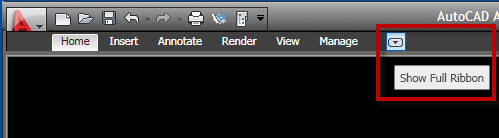
Many people complaint that the new interface take a lot of screen space. True, but do you know that you can minimize them? Mark W Kiker shares this on his CADD Manager Blog.
AutoCAD 2010: Getting Sticky with Sticky Panels
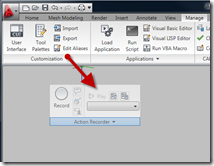
The most annoying thing about the new interface for me is I have to move to different tabs frequently. I found in Shaans blog that we can tear off a panel. This only applies to AutoCAD 2010 and later. With this sticky panel, we can use it just like toolbar!
Lock Down those AutoCAD Toolbars!

Now after you tear off your panel, you may want them lock at their position. You don’t want to accidentally move them. Lynn Allen shares that we can lock it just like we lock the toolbar!
New Shortcut Keys
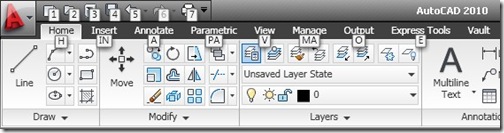
Do you want to speed up when activating tools with the new interface? You may like this tip. This also applies to all Autodesk products that use ribbon.
Quickly Hide The Ribbon Using A Custom Keyboard Shortcut
This is an article by Richard Alexander. He’s giving a tip about creating a custom keyboard shortcut to quickly hide your ribbon. You may need that!
Add a Tab, Panel and Button to the ribbon in AutoCAD
Our AutoCAD CUI tutorial explains how you can create tabs, panel and buttons on ribbon. If you only want to arrange your custom tools in AutoCAD, then you can read this. If you want to cover all about CUI, read our CUI tutorial series here.
Ribbon for AutoCAD Express Tools 2009
Are you using ACAD 2009 and loves the new interface? You may found something is missing: the express tools tab. You can add it manually. Xanadu explains how you can do it.
ACAD 2010 users don’t have to worry about this, it’s already there :)


It is the most important panel in AutoCAD.
[…] écrire ce post, j’ai consulté ce post anglophone qui donne des conseils sur l’utilisation du ruban et des barres […]