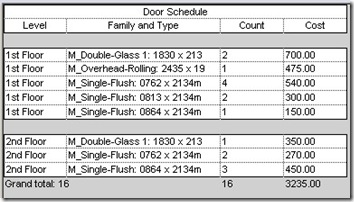
You have created door schedule before. Remember that now we have the ‘total cost’ column next to the count column? Sometimes we do want people who read this schedule know how much each unit costs. Not just the total. How can we show the unit cost and total cost together?
Right click in your schedule view, click view properties from context menu. This is where you can add a field to your schedule.

But there is no more cost field! Yes, you can only use one default field at a time. We have used it before, and we can’t use it again.
Adding Custom Field
We can add custom field. This time we will use calculated value. Click the button in this dialog.

Give this calculated value name: ‘unit cost’. Change the type to currency. Then the formula to Cost. The formula is case sensitive.

Cost is a default field name that showing your family cost. Basically what we did is using the cost value in this custom field. The exact same value. You can create a formula using several fields. But we don’t need it now. Click OK.
Defining Field Formatting
Now open your Formatting tab. Click the cost field. Change the heading to ‘Total Cost’ and make sure the ‘calculate totals’ is checked.

Then select the ‘Unit Cost’ field, and make sure the ‘calculate totals’ check box is not active.
So now we have two cost fields: one will calculate the total cost, and the other will show the unit cost. Click OK and review your schedule.

I would like to know if you need or using other custom field. How do you define it?


Thanks for the example, bookmarked and kicked!http://www.cadkicks.com/adkrevitarch/Creating_Custom_Schedule_Field
Thanks for the example, bookmarked and kicked!
http://www.cadkicks.com/adkrevitarch/Creating_Custom_Schedule_Field