I had this question several times: can we automatically label our coordinate in AutoCAD? If you are Civil3D user, then you most likely will suggest them to use C3D. But can AutoCAD actually do it? YES!
I saw many people use AutoLISP to do that task. It works great. But sometimes you may want to have your own labeling symbol and format. So, why not using field?
Creating a reference object
First, we need to create an object as a reference point. It can be a point, a circle, or any symbol you want it to appear. I use this symbol.
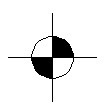
I prefer to use point or circle. We can easily use the point position or circle center.
Creating an Attribute Definition
After we have the reference object, we need to define an attribute definition. You can activate it by clicking it on your ribbon, home tab, block panel.
Or simply type ATTDEF then [enter].
Let’s define our attribute. Give the attribute tag, prompt like below. In default field, type ‘X Y = ‘ then click insert field.
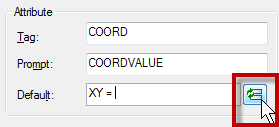
Change the field category to objects, and in field names, select object. Click select object button to define the object type. Select the circle, don’t select anything else!
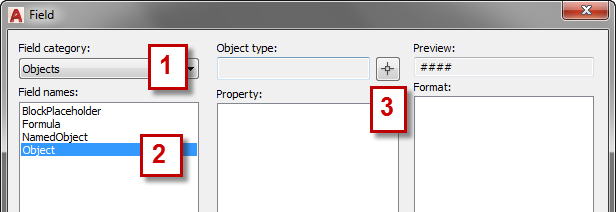
AutoCAD will list all available properties. Select center (or if you use point, select position). Because I only use it in 2D drawings, I don’t need it to display Z value. I turn it off. Change the format if necessary.Click OK.
Click OK again to close the define attribute dialog box. Place your attribute definition in desired location.
Optional: Define Adjustable Leader
If you don’t want to have leader in your coordinate label, you can skip this step.
I add a line that will be used as leader.

Create the Block
Now we can define the block. Click create from ribbon, block panel.
Select all the objects, and define the center as insertion point. Activate Open in Block Editor on lower left of this dialog. We are going to add some ‘dynamic’ functionality. Click OK.
AutoCAD will show the edit attribute dialog. We don’t want to modify it as it is updated automatically. Just click OK.
Add the Control Grip
What we want to do is adding a grip control, so we can modify the text (and optionally leader) placement. In block authoring palette, activate the point parameter.
Now place it where you want the grip appear.
Now activate the stretch action.
Select the point parameter, create the stretch frame like below, and select the line and attribute definition. [Enter] to end it.
Now we are done! Save this block and close block editor.
Using the Label
How we can use the label? Just insert the block, and click on the point you want to show the coordinate. After you have one of the block in your drawing, you can copy it and place it on several points you wanted.
Because we add a control grip, we can move the text and leader position!
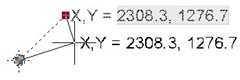
Because we use field, if you move your points, the value will be automatically updated! Very cool, isn’t it?
Why Attribute Definition? Why not Just Use Text?
You might ask this: why not just use text with field? I know we can insert field within text, single or multiline. But it doesn’t work. You may want to try it by yourself.
Apparently the field will consider the reference point always at 0,0,0 when you create a block. It works if you don’t create a block from them, but I believe you want to use it as reusable content, aren’t you?


Nice little tip, maybe this is possible to use in another way like for example for level indication. If you move your ucs to level zero and make a block like you describe without the X coord and only the Y coord. This could work don't you think?
Thank you, glad you found it useful :)
I believe you mean to display the level elevation in elevation/section view like in this post. Yes it could work :)
But I think it's easier if we just use ordinate dimension.
Brilliant!
Haven't tried it yet but it's just what I was looking for.
Much neater than ordinate dimensions.
to Anonymous:
Thank you, glad you find it useful :)
thank you …
But i m little confused. I am just copy pasted a small part of your solution
“Using the Label
How we can use the label? Just insert the block, and click on the point you want to show the coordinate. After you have one of the block in your drawing, you can copy it and place it on several points you wanted.
Because we add a control grip, we can move the text and leader position!”
I have a doubt in this part. In this sentence u mentioned that after inserting one block then we can copy it and place it on several points we wanted.
This is not working.
I copied the block and pasted it in several areas in that drawing,but the coordinate values is not changing.
do we need to insert the block everytime ?
I need a solution such that if i copy paste or move the block,the co ordinate values will have to change.
is it possible?
Hi Ajith,
AutoCAD fields don’t update in real time. But it will be updated when you save or plot the file.
If you want to force update it before saving/plotting, you can REGEN the drawing, then the fields will be updated ;)
THANK YOU FOR QUICK RESPONSE
No…I tried REGEN & SAVE also..but it is not working :(
Try to type UPDATEFIELD and select the fields you want to update. You can type ALL if you want to update all fields in your drawing.
If it works, it’s probably the FIELDEVAL system variable has changed. Type FIELDEVAL [enter] and change the value to 31.
If it doesn’t work, are you sure you created the block correctly?
Thank You Edwin ..
Now it is working.
Thank You Very much. :)
I’m glad you manage to solve this problem :)
Great article. You really broke it down so it is very easy to follow along. Thanks a lot.
What I’m trying to do is to have the drafter pick a “point” in layout space and if it’s on top of a viewport, it will pull that “point” from model space and display the coordinate for that point, keeping a live relationship between the two. Maybe not 100% live, so that if your point moved you’d have to erase the block & redo it, but that’s okay. As long as we know 100% that the coordinates are correct… its’ a start.
I don’t think that’s possible. Why not placing it in your model? You can use annotative blocks to control the block sizes. Or is there anything else that makes you want to use it in layout space?
Thanks you so much for a very very useful Tips.
Hey Edwin,
I followed all instructions or maybe I missed some “but the line/leader doesn’t follow whenever I move the text. It’s locked/fixed in the position when I made it.” Any tip on this? Thanks.
Jeffrey,
There are 2 possibilities that crossed my mind. It can be the leader is not inside the stretch boundary or you don’t select the line as the object to be stretch. If you still have problem, please upload your file, or email me as attachment so I can take a look.
You can also use outolisp to work 3D coord by save this file to ( xyz.lsp)
and at your aoutcad file writ ( APPLOAD) and load xyz.lsp from your folder
at aoutocad comand writ ( xyz) insert your point then lisp will write XYZ point
now save this file at your PC ( XYZ.lsp)
;;;;;;;;;;;;;;;;;;;;;;;;;;;;;;;;;;;;;;;;;;;;;;;;;;;;;;;;;;;;;;;;;;;;;;;;;;;;;;;;;;;;;;;;;;;;;;;;;;;;;;;;;;;;;;;;;;;;;;;
;;;;;;;;;;;;;;;;;;;;;;;;;;;;;;;;;;;;;;;;;;;;;;;;;;;;;;;;;;;;;;;;;;;;;;;;;;;;;;;;;;;;;
(defun C:XYZ (/ OSNAP PNT1 P1X P1Y P1Z P STDX STDY STDZ XCOORD YCOORD ZCOORD PTXT )
(setvar “ORTHOMODE” 1)
(setq OSNAP (getvar “OSMODE”))
(command “setvar” “osmode” “0″)
(prompt “NOTE!!! Coords. & leader drawn per current dimstyle; precision per UNITS… “)
(setq PNT1 (getpoint
“\nPick coordinate point: “))
(setq P1X (car pnt1))
(setq P1Y (cadr pnt1))
(setq P1Z (caddr pnt1))
(setq P (getvar “LUPREC”))
(setq STDX (rtos P1X 2 P))
(setq STDY (rtos P1Y 2 P))
(setq STDZ (rtos P1Z 2 P))
(setq XCOORD (strcat “X ” STDX ))
(setq YCOORD (strcat “Y ” STDY ))
(setq ZCOORD (strcat “Z ” STDZ ))
(setq PTXT (getpoint
“\nPick text location: “))
(command “LEADER” PNT1 PTXT “” XCOORD YCOORD ZCOORD”")
(command “SETVAR” “osmode” OSNAP)
(princ)
)
;;;;;;;;;;;;;;;;;;;;;;;;;;;;;;;;;;;;;;;;;;;;;;;;;;;;;;;;;;;;;;;;;;;;;;;;;;;;;;;;;;;;;;;;;;;;;;;;;;;;;;;;;;;;;;;;;;;
I am facing some errors with the tutorial whenever i select an object the property list panel is just empty.
Can anyone help?
B.,
Is the properties palette also empty when you select other objects? Or only when following this tutorial? In which step do you have this problem?
Thanks for the lesson. Is there anyway that I can get this to identify northing and easting instead of xy?
Thanks again
Tom,
In this tutorial we are using point coordinate, so we can’t get northing and easting. However, you can identify northing and easting if your object is line. It is not as easy as point, but yes, you can have it.
It works for me perfectly.
I use two attdef instead of one. (one for the “x” axis and one for the “y” axis)
I improve the block with the dynamic block (streching and rotating) to fit in the drawing better.
Thanks for the tip.
One doubt. I have my “0,0″ not in the original ucs and i can´t move the entire draw. Exist any solution, maybe a function that solve this?.
Thanks.
Ernesto Fraga
Montevideo – Uruguay
Hi Ernesto,
It should be no problem. The fields will recognize the coordinate in active UCS. You don’t need to use world UCS to make it work.
Hi, my block only shows positions XY in relation to world ucs but not to current ucs. How could I fix it? Thanks!
Ernesto and Huang,
Apologies for my previous reply. You guys are right, it doesn’t work if you move your UCS, it will always refer to 0,0. I can’t find any option to correct this problem.
You may need to reference the drawing in another drawing that using world UCS. Then you can use it there.