We have discuss about using Quick Select before. QSELECT is very useful if you just use it occasionally and not many properties to FILTER. There is one more utility that we can use, very powerful even it’s not as pretty as QSELECT. You can save your filter and reuse it frequently. Very useful if you have many properties to filter, and use it many times.
FILTER tool may be not popular because there’s no button/icon to activate it. At least when I check in help file, I can’t find anything about it. You have to type it in command line. FILTER dialog box also might be scary when you first see it. But after you use it for a while, you probably don’t want to use QSELECT anymore.
The advantages of using FILTER are:
- You can set multiple conditional filters at once. QSELECT only allow you to apply one conditional filter at a time. Then you need to apply another filter to your selection.
- You can save the filter setting and use it again later.
Let’s see how it works.
Using the filter
Open your AutoCAD drawing. Type FILTER then [enter]. Filter dialog box is loaded.
Now let’s say that we want to select all objects that use By Layer as color.
How to do it?
- In filter dialog box, choose color as filter. Click select to choose the color. Click by layer in Select Color dialog box.
- Click Add to List to define the filter.
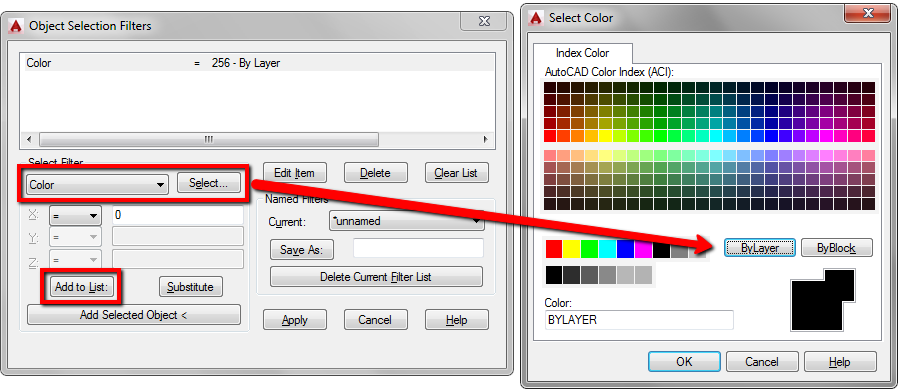
Click apply. Filter dialog box will close and let you to select object. Now select any AutoCAD object that you want. You can use all selection method you know.
After you press ENTER, you will select only objects with By Layer color.
If you want to select all objects that are not using By Layer color, change the filter from = to !=.
Using conditional statement
You can add more conditional for complex objects. Let’s say you want to quickly select all circle and lines, and the color must be red. We know that the conditional supposed to be:
(Circle or Line) and have to be red.
Or in filter, it will be:

Saving Filter
The beauty of filter is it can be saved. If you defined many conditional filters, then it would be ridiculous if we have to set it every time we want to use it. Type the filter name in Named Filters group and click save as.

Now, after you save some filters, you can quickly select your objects with selective properties in just a few clicks!
Imagine if you use Quick Select. You will need to do repetitive tasks every time you want to select objects.


I’m sorry but what is this filter used for? What I know is that I’m trying to loft a drawing but I can’t. This message always pops up and blocks my work.
What message? Filter is only to help you select objects with specific properties.
Hi Edwin; thinks for this tuto.
Please how to use attrib with filter command
Best regards.
There is some interesting thing in filter selection (find in autocad 2012 32, win xp):
If I use FILTER command at first, then apply it to my new selection, then I dont see selecting objects in Properties tab.
But if I use SELECT at first, and then apply FILTER to it, I can see and modify my selection in Properties tab.
May be it is from Variables changing or something else.
Hi Edwin,
Can I take quantities of “BLOCKS” using FILTER Command.
Thanks & Regards,
Mujeeb
AlEdwin, what is the difference between Paper space and model Space?
Another question is what is the difference between measure and Divide?
Thanks Al.
Hi Joymalya,
Model space is the space where you work to draw your design/model. Paper space is the space where you prepare the drawing you created in model space, for plotting purpose.
Measure is to add point (or block) with specific distance along an object.
Divide is to add specific number of points along object. AutoCAD will set the distance automatically.
Edwin, how do I filter my drawing so that if I need to change the line type scale (eg for a centre line) in my drawing, I do not have to match properties for each line I want to change? Thanks Al.
Hi Al,
Do you need to change the linetype scale for specific lines only? If they are on different layers, you can select them using filter or Quick Select then change it on properties palette.