
Text Field
MicroStation Field is used to show element, model, or file properties. You can show any properties that your objects have. The common use of field is in title block. Field will automatically show when the file is plotted, who save it, file name, et cetera.
You don’t need to manually edit your fields value. Some fields are automatically updated. But if they don’t, you can update your fields by keying-in ‘field update select’ to update selected fields or ‘field update all’ to update all fields.
Let’s try this tool directly using the ‘field.dgn’. This file is provided in the early tutorial. This is a simple drawing that showing rooms concept. We are going to show the rooms area using fields.
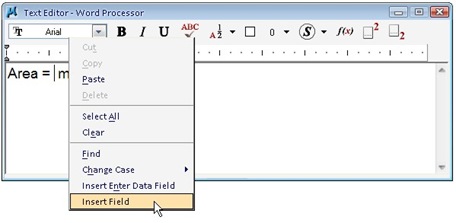
Activate place text tool, type “Area =” (without quote). We can add field by right clicking in word processor, and select insert field from context menu.
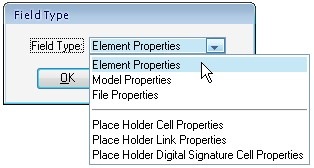
MicroStation will ask you what field type you want to insert. Select ‘element properties’.
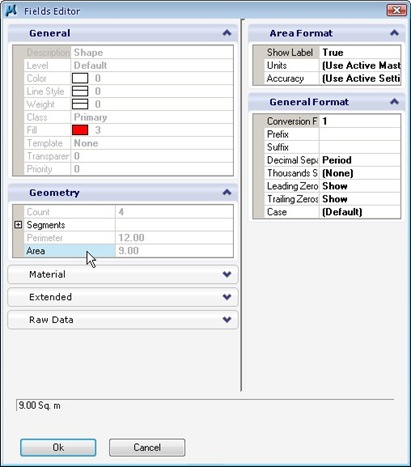
Select any rectangle in the drawing. MicroStation will open a dialog box. All the rectangle properties are here. Select ‘area’ field in geometry category. Make sure you see the area value at the bottom of this dialog. Click OK.
Create more fields to show the rest of room areas. Try to show another field too. Perimeter is another common value to be shown in this conceptual design.
Modifying the objects
Try to modify the rectangle size. Activate modify element from MicroStation navigation toolbar.

Move your pointer, snap to a midpoint or endpoint of a rectangle, click data point. Move your pointer and click another data point to accept the modification.
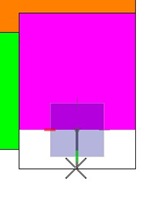
You should see the rectangle modified. And… the field value updated!
Other Text Tools
These are some more text tools that you might will use frequently. I’m not going to write about it in details. You can try it by yourself, while I’ll try to figure how I can put it in some exercises later.
Match Text Attributes
We need to change the value in tool settings regularly. When we place text, sometimes we want to match all the values to existing text in our drawing. This is the right tool for it. Activate it, and select a text in your drawing to match it’s attributes.
Change Text Attributes
This one is for changing existing text attributes.
Copy Increment Text
I love this tool. You can copy text that contain numeric numbers and create incremental copies.
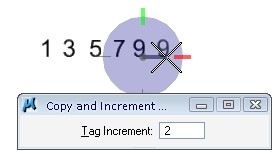
If you copy text that contain numeric and letters, then the possibilities would be:
1 : the result will be: 1,2,3,4,…
1A: the result will be 1A, 2A, 3A, 4A,…
5D1: the result will be 5D1, 5D2, 5D3, 5D4,…


Hi,
Can you round the area to the nearest half?
Alfred,
If you want to show the plot date, we don't use fields, but plot styles. If you use it, then it will show the last plot date (not current).
Some fields are not updated automatically. You can update them using keyin: FIELD UPDATE ALL
Hello Edwin,
First off, I just wanted to say that I've found your site and tutorials to be a great help in helping me figure out the world of MicroStation.
I've used the above method to create fields in my title block. What I'm trying to do though, is have the data auto-update itself based on when the the CAD file is opened, by whom, and when a print was created. I used the same steps outlined above, the only difference is at the point I choose "Element Properties", I instead chose "File Properties". This brought me to a pop-up page within the Fields Editor with a "General" tab. This tab contains some of the data I need to be in the title block such as Author, Company, Last Saved, Date Created, Date Plotted, etc.
I used the data here and formatted it to the way I want it to look in the title block. The problem is, after inserting, I did a print as a way to test if the field for "Date Plotted" will update within the title block. Unfortunately it doesn't. It requires me to go into the "File Properties" option and manually update and then replot that specific sheet.
Is there a way to get around this issue so that when a plot is created, the "Date Plotted" field automatically updates without the need to go through all the commands and sub menus and then reprint.
Thank you for your assistance
Alfred
Alfred,
I posted a tutorial that might interest you. It's how you can use text substitution in MicroStation.
hi edwin, what is the difference between FIELDS and DATA FIELD ???
may i manage all this information, something like sheet set manager??
in microstation there is something like attribute text??
best regards
Emmanuel,
1. Fields are text generated automatically from object properties, the same with AutoCAD text fields. Data fields are spaces you reserve to enter data later. Read this tutorial for more details about data field.
2. MicroStation handle file management differently, using projects. But yes, you can manage all of the information.
3. Block attributes in AutoCAD equal to Cell tags.
Are you migrating to MicroStation?
that's right, in my job, we may need to use microstation for some projects, so the company are paying for us a training course, but this training course are teaching us v8 (2002) but it's the only course that we found here, but in my laptop i've been using v8i in my laptop and there is a really big difference.
one thing… can i create fields? like a total count of sheets? that field doesn't appear in the file properties window, or who checked by and approved by for instance.
thanks a lot edwin
best regards