I found this thread this morning in CADTutor Forum. I found it’s interesting and trying to figure how it can work. This is how I do it.
The problem is, Manish wants to extract coordinates from 3 points inside a block, using AutoCAD data extraction. If we want to report one point, it would be easy. Just extract the insertion point. This is how his block looks like.
Modifying the Block
If you want to try this, you can download the original file from the forum.
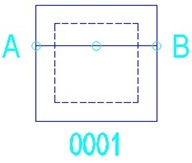
The 3 small circles are the set points we need to extract the coordinates. Open the file, and open the block in block editor.
Similar to what we did in labeling coordinates, add attributes that show the coordinates of each point. Refer to the tutorial to create them. Yes, you need to create 3 attribute definitions.
Tips: You can set the attribute to invisible, because we only need it in data extraction.

After you finish, save the block. Try to make several copies of the block. Change the Gully number, but DON’T CHANGE the coordinate values.
We are done with the block, and now we are going to test it in data extraction. Don’t forget to REGEN or save the file. Fields will not update unless we REGEN, save, or plot it.
Extracting Data
If you are not familiar with data extraction, read this tutorial and this tutorial to get familiar with it.
Page 1 – Begin
Just click next. Type the data extraction setting name as you wish. Save it.
Page 2 – Define Data Source
By default, it will use your opened data. Just click next again.
Page 3 – Select Objects
We only want to report the blocks data. So uncheck everything except the block name (GULLY_A). Click next.
Page 4 – Select Properties
Uncheck everything in category filter, except for attribute. Now only the block attributes left in the properties column. Check them all.
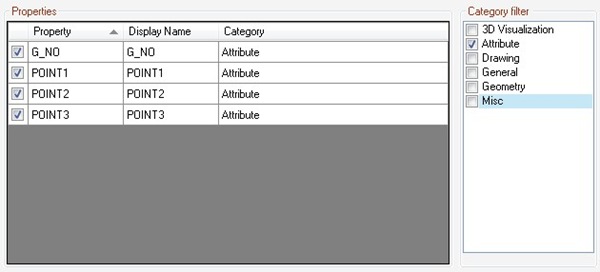
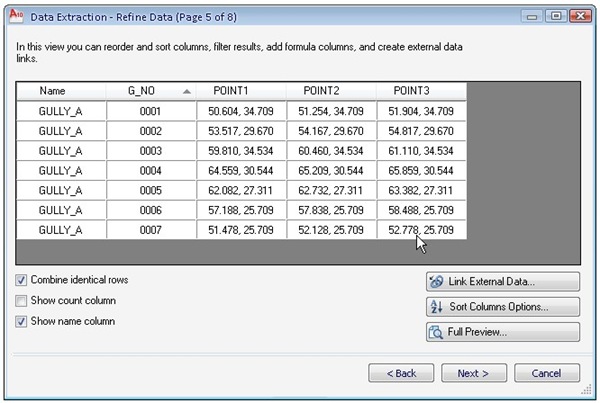
Page 5 – Refine Data
You should see the preview of our data.
Fields and data extraction are fun, aren’t they?


I'm glad that it works as you expected :)
I m happpy to receive the reply thanks edwinprakoso
wish u marry chrismas and happy safe new year 2010.
Thanks