We created a door using stretch action in dynamic block tutorial. It was a good practice, but can be better. Stretching them might not be the best option. Sometimes we want the door at specific sizes. Providing the users a list would be better. We can use lookup table.
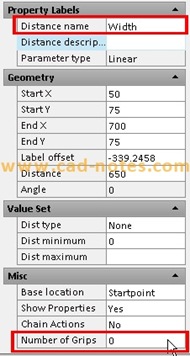
Let’s open the door in that tutorial. Rename the linear parameter to ‘width’ or ‘door width’. And change the ‘number of grips’ to 0. We don’t want our users to use other than specified sizes.
Place a lookup parameter. Place it anywhere you like it. When AutoCAD ask for the number of grips, type 1 then [enter]. It suppose to be the default value by the way.

After you place the lookup action, change the parameter name to ‘door type’.
Then place the lookup action.

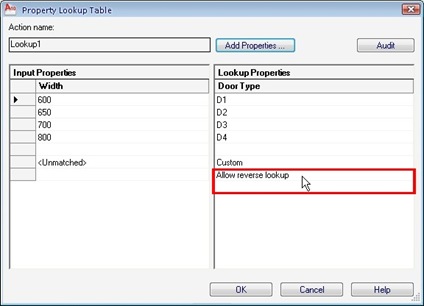
AutoCAD will open a lookup table. We are going to define the door sizes here.
Click the ‘add properties’ button. We only have one parameter here. Select the width parameter and click OK. The width column is added to your table. If you have more than one parameter, you can show them all here. For example, our column has 2 parameters.
Fill the table with the sizes and door type as you want.
Make sure we set the last row properties as ‘allow reverse lookup’. If we set it as read only, we won’t see the list.
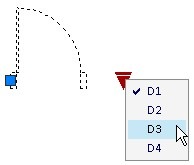
Click OK, save your block, and save block editor. Try your block. Select the block and click the down arrow to access the list. No grips, so no body can use a size that’s not specified in our list.
We can do that too with dimensional constraints, using a block table. We will discuss about this later.


Hi Edwin,
Is there as way so that I should be able to see the D1, D2, D3, or D4 labels when I insert the block?
Hai Edwin Prakoso,
saya kerja sbg drafter di Belanda.
saya mengerti cara kerja visibility dr dynamic block.
tapi apa kegunaan dan apa beda look up & block table dibandingkan visibility?
Hi Sofia,
Visibility berfungsi untuk menyembunyikan atau menampilkan objek.
Sementara lookup table berfungsi untuk mengubah ukuran objek yang diatur dengan dimension parameter.
Semoga cukup jelas.
Hello. I have a lot of types and parameters to put into the Lookup Table, is there any way to do this quickly like copy and paste from excel file or I have to tape it all by hand?
Gabriel
Unfortunately no. But you can use block table that can do similar thing. I'm not sure what's the difference is, but pretty much the same. You can select your cells in Excel, copy them to clipboard, and paste them in block table.