We have discussed how to select multiple elements in MicroStation, to manipulate or modify objects . That is the most common way in many applications. We select words or paragraph before we copy them in Microsoft Word, we select files in explorer before we copy them, and we select cells in Excel before we copy them. There is another way you can work with multiple elements in MicroStation: using fence.
So What is a Fence?
 |
We use fence to define a boundary around our MicroStation elements. Unlike selecting objects with modify tool, fence will always there. You can place more elements, and use the fence again. That’s why they call it fence! Further more, we can save the fences for later use. Very handy if we manipulate certain elements repeatedly. |
Defining and Modifying Fence Content
So how we can define fence and using it?
We can place fence by accessing place fence from task navigation. It’s the button with number 2.
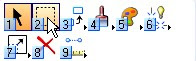
Click the tool, hold it until you see all the MicroStation fence tools. Click open ‘fence’ as a toolbox.
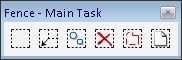
Activate the place fence tool. You can’t use other fence tools before you define your fence.
Let’s take a look to the tool settings. We can choose existing elements in our drawing to be a fence, but I’m more likely to define it by creating blocks or shapes.
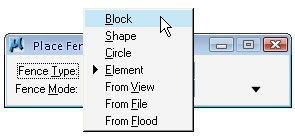
You can define the fence just like you place your block (or shape, or circle, depends your fence type).
How to modify the elements?
After we defined the fence, we can manipulate elements in two ways:
Using Manipulate Fence Content ToolYou can use the ‘manipulate fence content’ tool in the fence tools group. You can see the copy, move, scale, and more MicroStation manipulation tools here. |
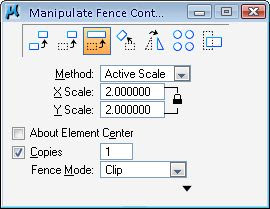 |
Using MicroStation Manipulation ToolsIf you use any MicroStation tool, take a look into the tool settings. You will see an option to use fence! It is disabled if you haven’t defined any fence yet. |
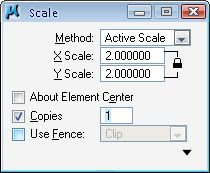 |
You will loose your existing fence when you select individual element using modify tool, or define a new fence.
Let’s Try Using Fence
Open the fence.dgn. Try to create fence by creating blocks and try to manipulate the content. Also try to use different fence types and fence modes.
You can download this animation to see how it works . It is an exe file, so you don’t need to install any player to see it.


http://toolguy.com
Intersting information. We here at http://Toolguy.com specialize in fence tools and think maybe wearing gloves is a good idea :)
Thanks for all the helpful information. I am looking for a fence to put around my garden. I also, want a fence that will not need too much work.