In this Article...
We have discuss how MicroStation views can give you great benefits. Now we are going to do a little exercise. Download this file before you start, and open it.
Creating and Activating View Group
Let us create a MicroStation view group.This view group will save the arrangement we made when working with views, and leave the default settings unchanged. Activate MicroStation View Group.

In the opened dialog, click create view group.

Give the view group a name. Fill the description if necessary.
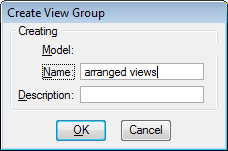
Close this view group dialog. Make sure the new view group name is shown in the view bar. If it’s not, change the active view group by clicking the drop down menu.
Opening and Arranging Views
Open view 1, 2, and 3 by clicking their buttons on MicroStation view groups.

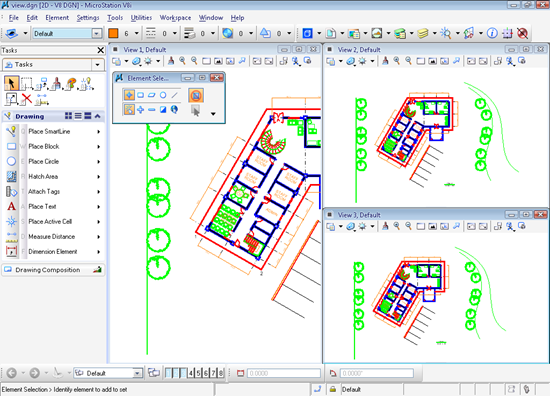
Three views will be opened. Resize and arrange the views. You can resize the MicroStation views by clicking and dragging the view edges.


Tips: You can’t resize the view when it is maximized. Restore down by double clicking the view title or click restore down button.

Arrange the views like below. All you need to do is defining the view location and size. To fine tune the views arrangement, click from MicroStation menu: Window>Arrange.
Controlling Views
Zooming Area
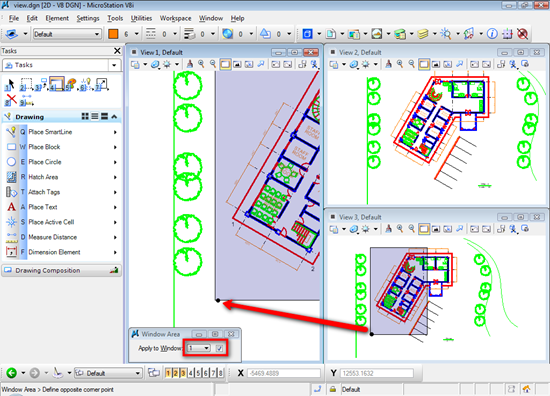
Click fit view on view 3. We are going to use it to see the whole area.
Now activate window area from view control toolbar. You can do it from any view. Change the ‘apply to Window’ option in MicroStation tool settings to 1. Select the area to show the left area of the building.
Do the same to show the right area of the building in view window 2.
Rotating View
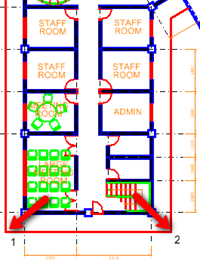
 Activate rotate view. In view 1, click points 1 and 2 consecutively. This will rotate view 1, so you can see the building orientation match the view.
Working With AccuDraw
Activate place text tool.

Type TOILET and try to move your pointer to view 1. You can see that the text will follow the view orientation. Without placing it, move your pointer to view 1. You can see that the text orientation also follow the view.

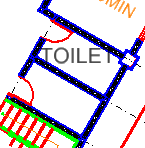
This is very useful if you need to draw geometry in different orientations.
View Attributes and Level Display
You can control each MicroStation view attributes and level display.
Click the view attributes button in view 3. Turn off text and dimensions. You will see the attributes are now hidden in view 3 only.
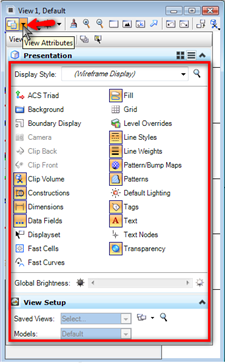
From MicroStation menu, click settings>levels>display. Or alternatively, you can press [ctrl] + E.
You can see the list of used levels in this drawing. I didn’t create many levels, but should be enough for you to play around :) Click the level name to show/hide the levels.
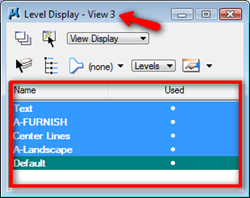
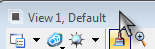
You can apply the changes to all opened views or only the view you selected. Pay attention on the dialog title. The level will be hidden/shown for the view that is mentioned in the title bar. To change the active view, you can simply click the MicroStation view title bar.
Saved Views
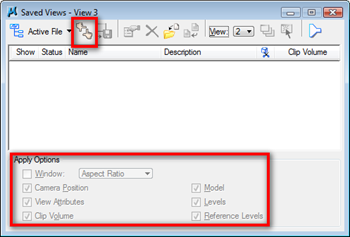
The last view tool we are going to use is MicroStation saved views. You can access it from MicroStation menu utilities>saved views.
Saves views is completely different with saving view groups.View groups save the view Window arrangement and position. Saved views save the view attributes, levels, and more properties. You can load the saved settings to other view if necessary.
Your challenge in the last section of this exercise is saving the view and load it again :)
Loading View Group
Remember that we created a new view group? Try to change it back to default and see what happen!


Hi Edwin,
I was wondering if you could help me with the following: is it possible to transfer view groups from file to file?
Say, I create a view group for one model in a file and now want this exact view group to be applied to a model in another file.
Unfortunately I don’t use and I don’t have access to MicroStation anymore. You may want to ask this question in MicroStation forum: http://communities.bentley.com/
nice..!its really helpful!!!