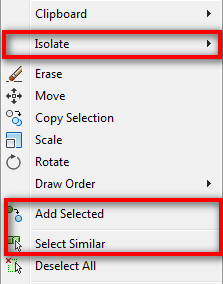
We have seen that there is additional menu in AutoCAD 2011 contextual menu: polyline. There are 3 more new items added in AutoCAD 2011 contextual menu: select similar, add selected, and isolate. All of them have been around for years in some Autodesk vertical products. I believe AutoCAD Architecture and Civil 3D already have them for years. In Revit, you can also see similar items. Glad to finally have it in vanilla AutoCAD!
Select Similar
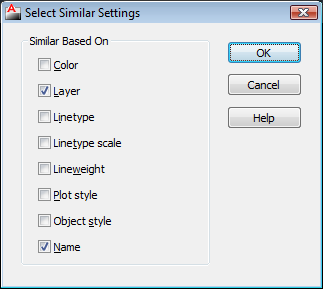
Select similar will select all objects with similar properties. You can set how similar the objects are. By default, AutoCAD will select objects if they have the same object name and layer. You can activate this tool by typing SELECTSIMILAR [enter]. You can change the settings using this method.
You can also activate this tool by noun-verb selection: select your objects then right click. You will find the ‘select similar’ in the contextual menu. This item will appear in contextual menu, only if you have object(s) in your selection set.
This is a very good feature, too bad it takes so long to be implemented. In the past you need to use QSELECT or FILTER to do this. This is much faster and easier! Of course there are some limitations. However, this tool is a great addition to AutoCAD 2011. You may not see or notice it, but you will find it really useful.
Add Selected
Add selected is also has been around for years. You can create a new object to match existing object type and properties. You can select an object, right click>add selected, then create the same object type with the same properties! I used to just create my objects and use match properties later.
Isolate
For years, AutoCAD users use layers for hiding/showing objects, and this is a good practice. I recommend you to stick to this method. However, sometimes we need to hide some objects on the same layer. Isolate is a perfect tool for it. You can select objects you want to display, then right click>isolate>isolate objects. All objects except your selection will be disappear. Or you can also hide your selection from the contextual menu.
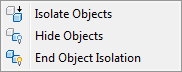
After you have done, choose ‘end object isolation’, your objects visibility will be restored.
Selection Cycling
Now we can cycle between object using a dropdown list. To activate/deactivate this feature, you can click the selection cycling button in the drafting tools group.

This is how the selection cycling works.
The Interface Changes
Some of the interface elements have changed (again). I’m not really think I can get any advantages from this changes, because there is no major changes like when the first time we see the ribbon. And the changes is quite obvious, you will notice the changes immediately. So I don’t think I will write about this.
Next, I will begin to write about 3d enhancements.


