There are many enhancements and changes in the new features of AutoCAD and Revit. One of them is the online help documentation. By default, the 2011 product line will attempt to open help file from Autodesk server. Wow! I can’t imagine how many users are using it at a time! The reason why Autodesk do this, is to keep the help file updated. I’m pretty sure they will do some more development to give more advantages on this. Because to ‘keep it updated’ can be done by using a local copy and check the server for updates on regular basis. So there should be more. If not now, should be later.
For you who have good internet connection, this might not be a problem. For you who don’t have internet connection, you can’t open the help documentation? Well, not really :) By default if the application cannot get the documentation online, it will open a local help file. The one who get frustrated will be you who do connected to internet, but have poor connection. These days, people easily get frustrated to wait for a few seconds. And if it happens to your panic F1 button it will be worse.
Thankfully, this behavior can be overridden, and make the application to use local help file by default. It still in html format, but you don’t have to be connected to internet.
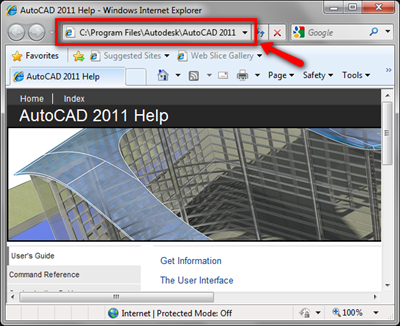
How to use local help file for AutoCAD
In AutoCAD, it’s very easy. You can toggle this option in AutoCAD option dialog, system tab. In help section at the bottom right corner, you will see the option to turn it off. See image below as reference.
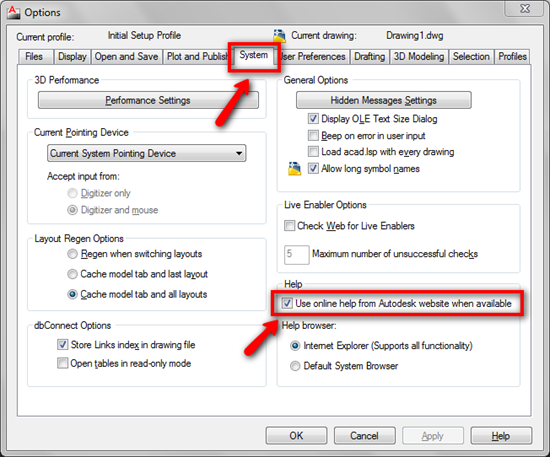
I believe this option available for all AutoCAD based product (AutoCAD Architecture, AutoCAD MEP, AutoCAD Mechanical, etc)
See official documentation in TS14964770
How to use local help file for Revit
For Revit, it’s a bit more tricky. I tried to find a dialog that have this option, but can’t find any. Apparently the only option to do this is by manually edit your Revit.ini file. Open it with text editor like notepad find the [Documentation] section.
The section should look like this
[Documentation]
UseHelpServer=1
HelpBrowser=0
Change the UseHelpServer variable value to 0. Save and close your Revit.ini file. If you have Revit open, restart your session.
See official documentation in TS14994272
Notes:
* HelpBrowser variable will determine which browser it should use. The default value 0 will make Revit use your default browser. Change HelpBrowser variable to 1 to make it always use Internet Explorer. I’m not an Internet Explorer fans. But when you deal with Microsoft (of course) and Autodesk site, you better use IE to avoid problems. From my experience, some URLs and features can’t be accessed using other browser.
** I tried to search for Inventor in Autodesk support site, but can’t find any. I’m not sure why, but probably because Inventor is released later and not officially documented yet.


Hi Edwin, the theory is OK but when I tried it is useless. I have installed the local help module for AutoCAD 2011 Mechanical and unchecked the "Use Online help…" optinon.
However when it press F1 it starts looking online and after 25sec I see some help. If my laptopp is disconnected from network then the local Help will appear in the next second.
Is there any other possibility to use the local Help instead online even if I am linked to network?