In this Article...
After you’ve been working with MicroStation cell for a while, I’m sure you will be wondering how to modify the cell on your drawing… and how you can modify the cell in your cell library. Well, I guess the best practice in MicroStation is, you don’t change the cells on your drawings, but you replace them.
For AutoCAD Users
If you are AutoCAD users, I know you will be trying to find something like edit in-place or block editor. And you will expect modifying the cell definition will update all cells in your drawing automatically. MicroStation cell might be similar to AutoCAD block. But they are totally different animals.
MicroStation cells are library, objects that you use repeatedly. Imagine you are placing chairs when you design an office space. When you realize that you want other type of chair, you do not create chair on your own, but you pick another type from catalog and use it. I guess this makes sense. You keep the first chair model in your library, but you don’t change it because you might need it later. You simply remove it from the drawing (but not changing the definition) and replace it with another type.
AutoCAD and MicroStation have different concept on this ‘reusable contents’, so don’t try to make cell behave like block!
Modifying MicroStation Cell
However, you will need to modify cells. You may need to correct some mistakes, update the library, or for other purposes. How to modify cell library? There are two ways: you can delete the MicroStation cell definition and recreate it, or you can modify the MicroStation cell within cell library file directly.
Recreate the cell definition
AutoCAD users may love this workflow. You can place your cell to your drawing, then drop the cell.

Drop is a tool that will break your element to simpler elements. You created cell from several elements, and drop element will break the cell back to the original elements.
Make necessary changes, then recreate the cell. You need to delete the original cell from cell library first, before creating cell with the same name.
Opening and Modifying MicroStation Cell Library
Another method to do this is by opening the cell library. Cell library basically is a DGN file. You can open it using file>open, then change the file type to MicroStation Cell Libraries (*.cel).

Each cell is placed in separate model. Each model will use the cell name. To switch to the cell you want to modify, access file>models. MicroStation will open model dialog. This model dialog will show you all cells the cell library has. You can double click to open the model, or right click>open. This will open your cell.
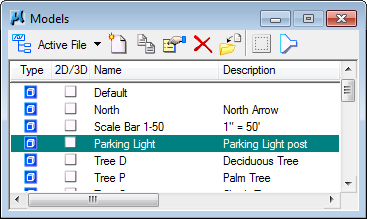
Do the modification as necessary on the drawing. After you finish, save this cell library. Now your cells are updated!
Replacing Cell
Now if you back to your design file, you will see that your cells are still using the old definition. They are not changed to the new cell definition. Yes, you need to update them manually. Or change the cell to another cell definition.
You can do that by using replace cell tool.
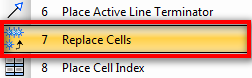
This tool is called replace cells. However, you can also use it for updating your cell definitions.
Activate the replace cell tool, and take a look to the tool options.
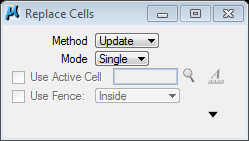
You can use update or replace cell as the method. Remember, you need to attach the cell library. Some cell tools won’t work if it can’t find the cell definition in cell library.
You can also change single cell instance, or update every cell that use the same definition.


Very useful explanations! Thank you very much!
http://communities.bentley.com/communities/other_…
I disagree. Blocks & cells are basically the same. I have a simple rule. If you repeat an element in a drawing use a block. Even if it's just a circle to represent a column. When the boss says we want the circle to be square, or I want coords of every column you can do that almost instantly. & for no extra cost in setting out those columns.
Now if the circle columns become square columns you can do 2 things. Update the circle-column block/cell to make it square or replace the circle-column block/cell with the square-column block/cell. Editing blocks or cells is about the same level of difficulty in autocad & µstation. Replacing is different. In autocad you rename circle-col to square-col & insert the square-col block into the drawing. This updates all the renamed blocks. In µstation you make square-col the active cell. Then you can update globally, singularly or by contents of a fence, all the circle-cols.
In conclusion, repetition means use blocks! At no point in either autocad or µstation should you be deleting, removing or exploding/dropping blocks/cells to perform an update.
LOL!!! i mean when you go to Philippines,I will treat you..just tell me if you'll visit there,haha..thanks again..I'm a big fan of yours..
very well said and nice explanation sir!your my idol..wish i could meet you in person when I came back to Philippines:-)…. Godbless and more power!!!
Hi. I'm in the process of trying to switch from AutoCAD to Microstation, and this seems like one of the biggest failings of MS – the workflow is so convoluted for something so simple. I don't understand how this is at all intuitive.
The whole point of cells / blocks is that they enable you to make drawing-wide changes easily without having to drop / explode every time. There needs to be a way to implementing drawing-only cells without messing around with separate cell libraries, as the current workflow results in people just dropping cells to make their drawings easier to work with, which runs counter to the whole point of cells.
The more I compare the two, the more AutoCAD seems far more sophisticated and intuitive.
I have to disagree with you. I did feel the same when I first time migrating from AutoCAD. The problem is, they are aiming for different market. For corporate/enterprise users, this workflow is preferred than what we do in AutoCAD. The idea is simple. Yes, the users will not be easily modify the cells. That's good for keeping the company standard, isn't it? After they work for several projects, then the cell library will be sufficient and no need to modify the library that much.
MicroStation is better for collaboration than AutoCAD, and it is a better CAD platform. Try design history to collaborate, you might have the idea.
Sometimes, we do have to restrict the users. But yes, AutoCAD is much better as drawing/drafting tools. I will not choose MicroStation for drafting, but if I can get a solution using it as platform, I would be happy to use it.
I'm not sure if AutoCAD is that far behind now, because they have implemented so many features lately. But I still believe they have different market.
Which one is better? They are good at their own area. Somethings AutoCAD can do can't be done by MicroStation, and vice versa.