I found something interesting when exploring my shortcuts in Revit today. It is something basic, but I missed it until today. Probably it will be useful for you.
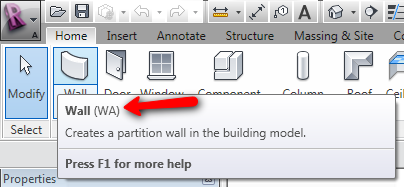
Revit has shortcuts too. If you place your pointer above a tool icon, the tool tip will show you the shortcut. If any. The wall tool shortcut is WA (see characters in the bracket).
You can also see the complete list of modify it in shortcuts.txt. In Revit 2011, you can also see it in a dialog box (see keyboard shortcuts section in this post).
However, they are still not easy to remember. And sometimes the tools are not even available in Revit ribbon. For example: overriding snaps.
The good thing about Revit shortcuts is you can cycle through them. If you remember the first character, simply press it. Then press arrow key (up down or left right) to cycle between available shortcuts. See the shortcuts cycling in your status bar.
When you find the shortcut, press [enter] to activate it.
This is useful because we can also guess what is the first character. For example walls and windows will start with W. Door with D, and snap with S!


