We are still discussing about MicroStation cell. We already discussed that we can use cells as reusable library. Now we know that we can place the cell. However, there are more that we can do with cells. Look at the cell library dialog box. At the bottom of the dialog, we can see several options, how we want to use the cell. We already use the active cell for placement. And there are more options.
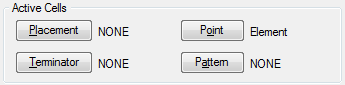
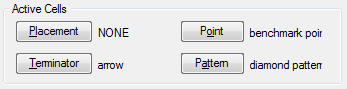
We can also use cells to place point, terminator, or as pattern. Try to open a cell library. You may want to try to create several cells for this tutorial. I created several cells: benchmark point (I will use it with place point tool), arrow (for terminator), and diamond pattern (for pattern). Look the active cells below. I can activate different cells for different purposes. To activate your cell, just select the cell, and click button. If you want to use it for placement, then click placement button. Click terminator if you want use use selected cell as line terminator. And so on.
Placing Cell as Point
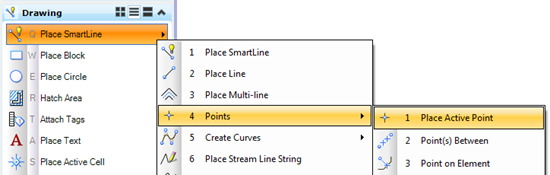
Now how can we place point? The place active point tool is under place SmartLine>Points.
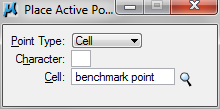
After you activate the tool, look at the tool settings. You will see the point type now is cell. You are still able to use element as point type, but now cell become the default point type.
Try to place your cell. You can place it by clicking data point, and the cell will be placed at your pointer position. You may want to try the other point tools and see if you can use active cell too.
Using Cell as Terminator
I created this cell for my terminators. Terminators will automatically find line/arch segments and place the terminator there. The terminator will also be rotated, parallel to the line direction. Remember, you need to create the terminator to point to positive X axis. That is the 0 deg angle, or the terminator direction.

Try to create several lines, SmartLines, arc, etc. Now try to activate the place active line terminator. This tool is under place active cell tool group.
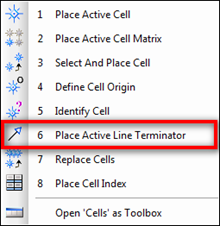
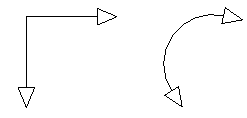
Click data point close to the line end. Click data point again to accept. This tool is very useful for placing arrows or other terminators. Especially if you need to place them with angles like this. You don’t need to rotate them later. Simply click data points!
Using Cell as Patterns
Pattern area tool is under hatch area tool group.
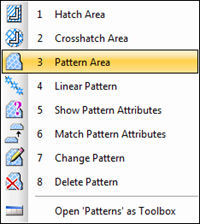
While hatch area only can create parallel lines pattern, pattern area can be used for any kind of pattern. As long as you define the pattern in cell library. We will discuss about hatch area in details later.
Just like the other tools, you can see the active cell as pattern definition.
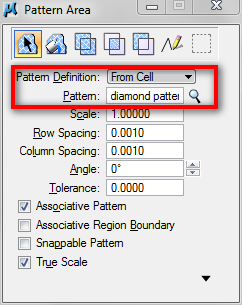
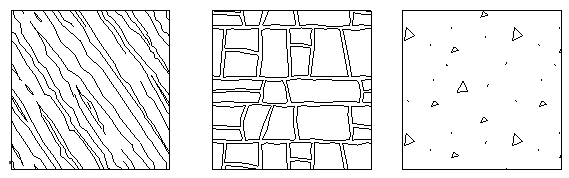
This capabilities allows you to create any kind of pattern you want. And it’s very easy to do. These are some samples you of patterns using cell definition.


Edwin, maybe can you help me, I when i use patterns the drawing is so heavy? I workwith microstation… if you can help me i'm so gratefull, thanks
this i cant understand…is there a flash for this sir?thanks in advance….