Controlling the linetype scale can be confusing. How to get the correct linetype scale for our AutoCAD drawings? Why my linetype is not showing, just continuous lines? Sometimes we also have a hard time when setting viewport in layout. We have them correctly in our model, but they are all gone in our viewports! Sometimes we end up doing a trial and error (again) to get it right.
This 3 steps guide maybe can help. It is not that hard at all when you know what controls the linetype appearance. It’s as easy as 1,2,3!
Step 1: Use the Right AutoCAD Template
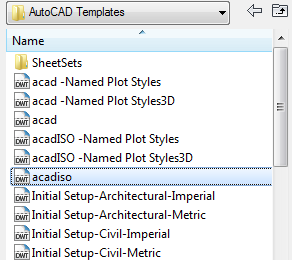
This is important. If you work with metrics, use the metric template. If you use imperial, then use the imperial template. Yes, you can change the units later, but you can save a lot of time when you use the right template. Especially if you already define your own template.
Step 2: Check the Annotation Scale
Now you can draw just like usual. If you don’t see the linetype don’t worry. Change the annotation scale. It’s at the right bottom of the AutoCAD window.

Change to the value to the size you want to plot it. You may need to REGEN your drawing before seeing the effect.
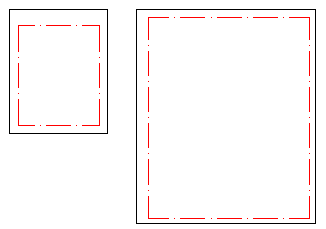
The nice thing about annotation scaling is: it has the intelligence to show how your objects should look like in different scales. These two viewports below are showing identical objects. The left viewport is shown on a 1:100 scale, while the right one in 1:50. See that the line type appears exactly at the same size on both viewports!
Very easy, isn’t it? In a common situation, we only require to do those two steps. But if you want to control your line type scale further, check step 3.
Step 3: Check System Variable
Many things in AutoCAD are controlled by system variables. The main system variable that controls the linetype scale is LTSCALE. If you started with the right template, 1 in most cases is acceptable. However, you may need to adjust the linetype size. Change the LTSCALE to a higher or lower value.
Annotation Scale Dependant
There is two more system variable that controls the linetype appearance: MSLTSCALE and PSLTSCALE. These variables are related to annotation scaling. By default, their values are 1. If step 2 above doesn’t work, these values might have been changed to 0… check these variables.
If you don’t want the line type is affected by annotation scaling, then you can change it to 0. I strongly suggest you leave it to 1. Try to get comfortable with annotation scaling first. There are many benefits that you can get by using annotation scaling.
Overriding the objects line type scale
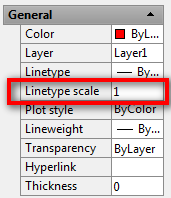
Sometimes we need to override some objects linetype size, and not using the global linetype scale. We can override the value from the properties palette, under the general category.
I hope controlling your line type is no longer confusing! Have fun!
Don’t forget to check more AutoCAD tips on CAD Notes here.


Hi there,
Thanks for your article. I have a few questions:
1. If I set the line thickness to 0.5, when will it actually print at this thickness? Is it when I set ltscale=1?
2. Also, if I change LTScale to 0.5 in model space, does it also affect paperspace?
3. When would I want to use LTScale and when would I want to use MSLTScale?
Thanks,
Samuel
God blles you :)
POINT 3 ABOVE ABOUT THE SYSTEM VARIABLES, IT DROVE ME CRAZY STRUGGLING ALL DAY TO FIND A WAY OF ADJUSTING THE APPEARANCE OF THE LINETYPES IN MODELSPACE. THANKS VERY MUCH!
NOW I JUST NEED HELP WITH SCRIPTS!
I want to be a certified trainer. Is there a program to certify professional autocad trainer via online. I am from Myanmar. Thanks.
Thanks so damn much for this! Old post but a god damn life saver!
Hey there, i have the same problem with Autocad structural detailing 2012 .. did you find a better way to solve it.
not much help? what if you inherit a bunch of drawings that did not use a template and throw in the Carlson Autocad factor? it has a bunch of drawing settings that may have made sense back in the early days of autocad but or obsolete and only add confusion. also why no answer to the last question posted here? not really a great tip if questions ignored.
AHA! Thanks for the post.
I am a longtime Civil3D/LDD/Eagle Point/Wild/ACAD user. Civil3D ships with these two variables set to opposite values. All linetypes are continuous in model space, but correct in paper space.
Set them both to one and presto, years of frustration gone.
I missed the boat on the annotative scaling, focusing on labels and styles of objects.
Thanks for this post.
EJ
Glad that this post fix your frustration EJ :)
how can i import list of coordinates in autocad?
I have CAD files that I need to change the PSLTSCALE to 0 in order for the linetypes to appear correctly. However, upon closing and reopening these drawings, the PSLTSCALE resets itself to 1 again. Is there a way to permanently set the PSLTSCALE to 0 on these particular CAD files?