If you need to create isometric drawing in MicroStation, you are probably wondering how to do it easily. We are not talking about drawing the isometric in 3D model, but isometric diagram in 2D DGN.
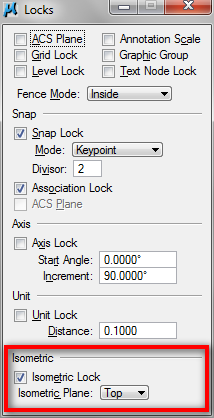
Open your MicroStation. Try to find the lock symbol in status bar, and click it. It is the active lock symbol. You will see a list of what you can lock, and which are active. One of the locks is isometric. Try to activate the isometric lock and draw a line (or SmartLine) in your drawing.

By default, the isometric lock will lock the pointer at top plane. Not real top plane, but this will allow you to draw isometric diagram at the top plane by imitating the 3D top plane.
If you need to draw in other plane, then click the lock symbol again, click full. This will open a dialog box that is showing you all the locks options. Isometric lock options are at the bottom of this dialog box.
What about isometric dimensions? You can add isometric dimensions by using arbitrary alignment.

If the isometric lock is still active, then you should have no problem placing it. It will be locked at the same isometric plane.
See animation below for your review.
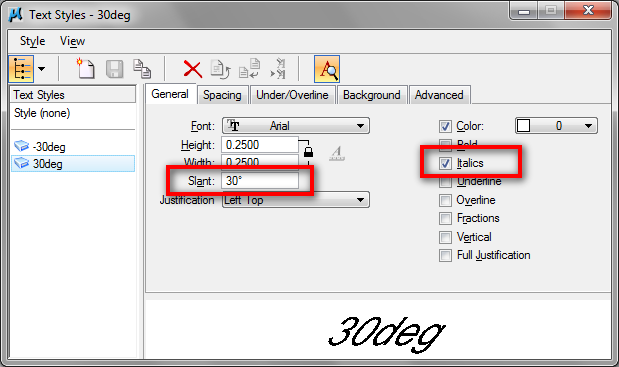
What about the dimension text and arrow? They are not isometric. You need to create several text styles with slant angle. Slant angle will only be available if you activate the italics option. Experiment with 30 deg or –30 deg for your dimension placement. Read here for more about using MicroStation text and MicroStation text style.
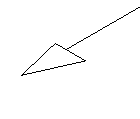
For dimension arrow, you need to create your own dimension arrow using cell. Then you can use it in your dimension styles. Read here for more about creating cell.


thanks, good job
Dear Edwin,
It’s really good and hep full information. I still looking for short cut key for controlling the cross as we can change axis in Auto cad by pressing ctrl + e for making vertical line in ISO view.
I have good command in Auto cad but facing problem in micro station. Please share some experience to handle this issue.
Best Regards
Saleem
Really Helpful