If you have rendered your model with artificial lights in Revit, you probably have seen that the result can be ‘not so realistic’. We don’t see the light bulbs glowing. We can see the lights, but it looks all wrong… where is the light came from?
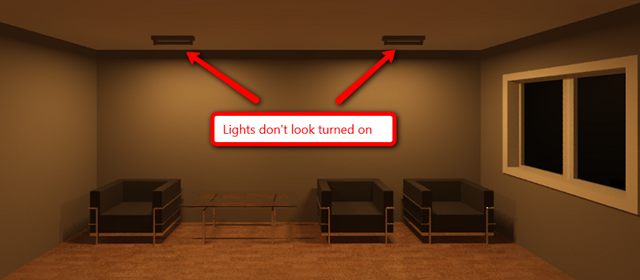
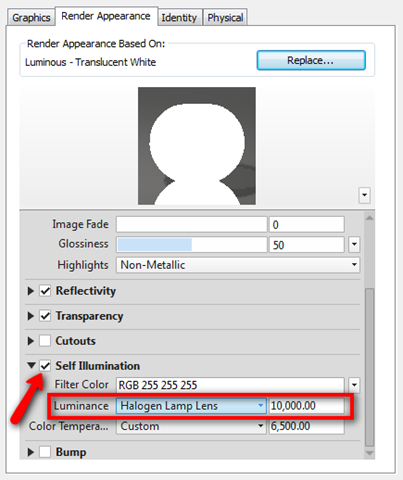
To create a ‘glowing’ light bulb, you need to define it by using material. You can create your own material, then activate the self illumination option in the material dialog box. You can define the filter color if necessary. And change the luminance to a lamp lens. In this sample, I use halogen lamp lens. As you can see in the material preview, the material is glowing. That’s how your light bulb should looks like, right?
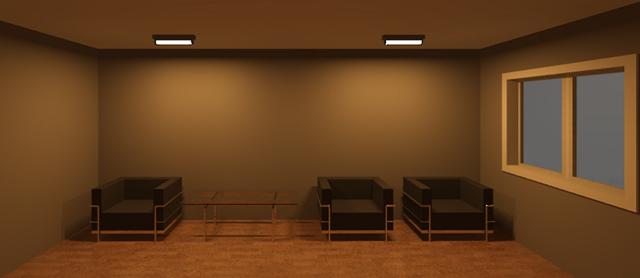
After I apply the material to the light lens (or bulb?) then I render it again.
Looks much more realistic than before, right?
You may want to make the material as parameter, so you can change it during the design process. So when you need to ‘turn it off’, you can change it using dialog box, not using material editor.
If you new to Revit Families, you may be interested to our e-book: Creating Your Own Revit Families. You can purchase it only for US$ 7. You can learn the basic, and guided by video tutorial.


Thanks for the article… Please where do I find this light component?
Hi Chucks, I use the default lighting fixture in Revit.
send me detailed proper notes thanks.
.
You are great!
thanks