Imagine this: you are an interior designer, and one day your client show you a brochure or a catalog.
“I want my front door like this. Can you put it in your model and render it for me? And make the rendered model nice.”
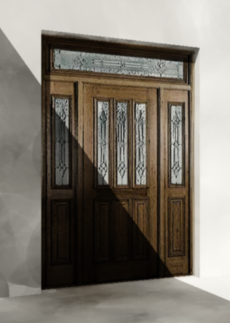
What do you think if your client want a door like below?
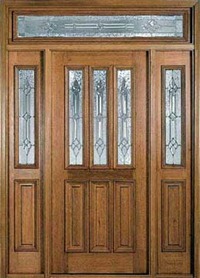
It definitely take some time to create it. And become harder if your client is quite hard to be satisfied. He may come back later and want another door model!
If you want to represent a complex object like that, especially for quick presentation, you don’t need to model it. In the previous tutorial, we created a painting with material texture. Well, you can do the same with this door! I’ve seen many people have used this trick. However, some people never use it. When I show it, many of them are surprised. So let’s see how we can do it.
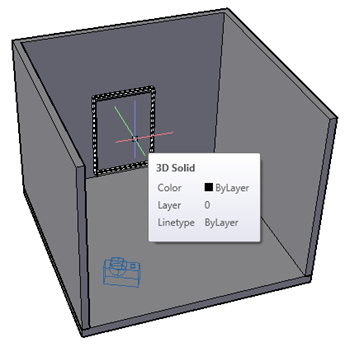
I quickly model walls, floor, and a door like this. The door is simply a 3D solid box.
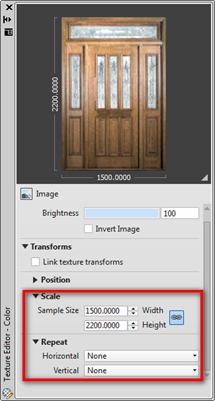
Then I created a rendering material using the image. I set the scale to match the solid geometry size.
How long do you need to create that?
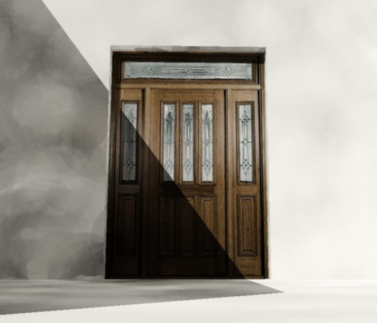
This is the image I rendered in medium quality. Not bad for a few minutes modeling. I wonder how it would take to actually create the model…


Nice tip!
One quick question though. Would it be possible to conjugate this with cutouts, so one could actually have the light come thru the windows?
Sandra
I’ve never tried that! It’s a great idea. I’ll try that and will back to you.
Hi Edwin
My trick has been copy and paste the jpeg or bitmap onto the drawing. Can you tell me the pros and cons of the two different method?
Pasting image to a model has limited capability. If you want more control, you need to create a material. You can add bump for texture, transparency, etc.
don't try that
the glass door cannot works as glass view
The result looks very nice. I'm gonna try that one too..
Thanks