In this Article...
We already discussed several annotation tools. This is the last one.
Another ‘must have’ annotation element in a drawing is pattern. Pattern is used to show object materials, show section area, and some other purposes.
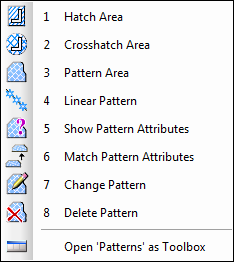
In MicroStation, we have the types of patterns: hatch area, crosshatch area, and pattern area. Hatch and crosshatch are used for simple pattern, while pattern area is used for complex pattern. If you need to define your own pattern, then definitely you have to use pattern area.
Hatch Area
Hatch area is used to create hatch pattern with parallel lines. You can control the spacing and angle of this pattern.

There are several ways to create hatch area. You can choose the element as closed boundary. You can also pick points to let MicroStation find the boundary using flood, union, intersection, difference, or picking points.
Associative parameter will associate your pattern to your elements. If you move or modify the elements, then the pattern will adjust to the new boundary.
Snappable pattern by default is off. Most users don’t want to snap to patterns since it will make your drawing messy. To many reference point will be found. Only activate it when necessary.
Crosshatch Area
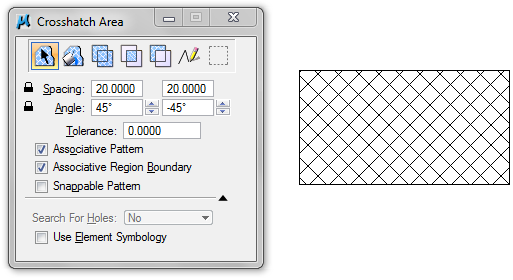
Crosshatch is very similar with hatch, only here you have two parallel lines definitions crossing each other.
Pattern Area
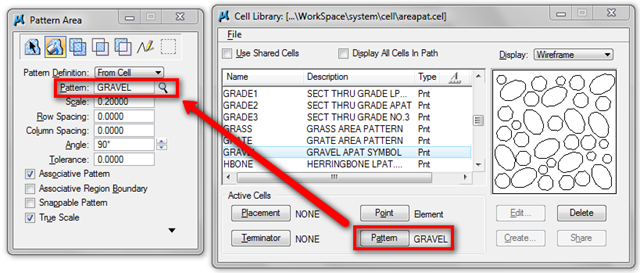
Hatch and crosshatch are used for simple patterns. Pattern area is used for creating complex pattern. You can use complex pattern from cells or .pat file. You already learn about cells, so you will not have a problem using it as pattern. Pat file is extension for pattern/hatch file from AutoCAD. If you are not familiar with AutoCAD and you don’t have custom pattern files from AutoCAD, then you probably will never use file to define your pattern.Cell is easier to define.
Exercise
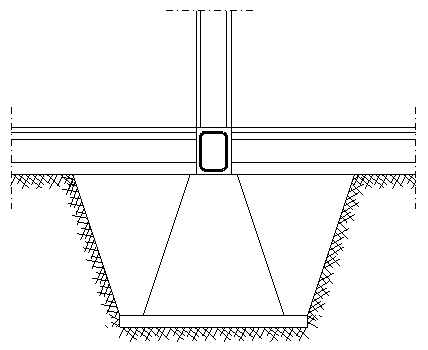
You can start the exercise by downloading this file: pattern.dgn. Here is how the file looks like.
See how you can do it in our YouTube channel here.


Hello Edwin
Please tell me how to make solid (fill) hatch in microstation.