Have you ever examined Revit door schedule, and the door width field? If you see the double door family, you will see that the reported schedule is not the actual door width, but it is the total opening width.
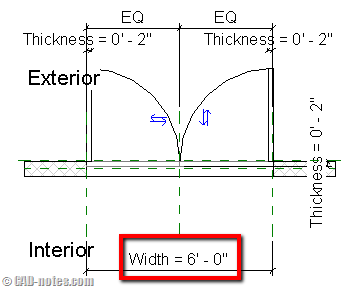
In this case, I want to report the actual door width. And the total opening width. There are several workaround to do this, in the family level or simply add custom field in the schedule.
I have posted a tutorial about custom field before, for similar problem with unit cost. Read the Revit Schedule custom field here.
Assumption
This post will use the later one. It may not be suitable in all condition, but it is the easiest. There are some assumption we make here:
- We assume that single door has maximum width of 3’. More than that, we will assume it will be double door.
- The door width are equal.
Renaming header
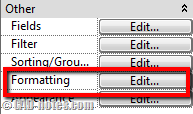
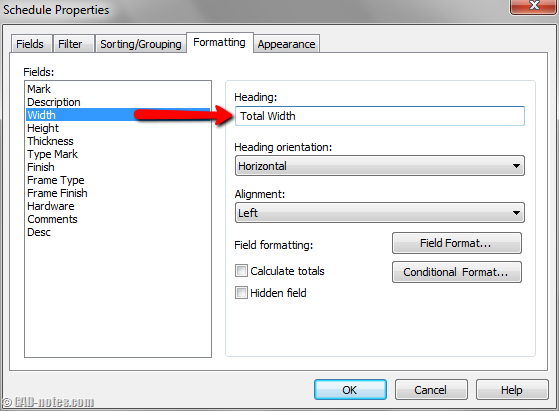
As I mentioned before, the width reported by Revit currently is total width. So I will rename the header. Open your schedule view, and click edit right next to formatting property.
In schedule properties, formatting tab, find width field. If you can’t find it, you have to add it in fields tab first. Rename the heading to total width.
Add Custom Field
Now go to Fields tab. Click calculated value.

In opened dialog box, input these following data:
- Name: door width.
- Field Type: formula.
- Discipline: common.
- Data Type: Length.
- Formula: if(not(Width > 3′), Width, Width / 2)
*field name is case sensitive!
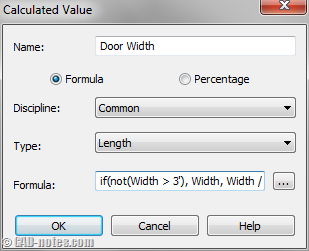
In formula, we use conditional if. We tell Revit to use Width if the door width is less than 3’. Remember that we assume if the width is 3’ or less, then it is a single door. If the condition is not met (more than 3’), we tell Revit to use Width/2.
Add Description Field
The custom field should work. But I want to add more description or comment to tell people who read the schedule what kind of door they are.
Like what we did previously, I add one more custom field:
- Name: door description.
- Field Type: formula.
- Discipline: common.
- Data Type: Text.
- Formula: if(not(Width > 3′), “Single”, “Pair”)
Now I have my schedule like this:
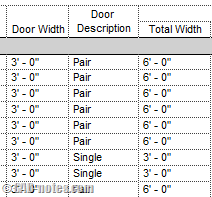
Now I know each door width, total width, and show description of the door using IF conditional.
Conditional IF can be very useful. I was trying to use family type for conditional. If the door name contains “single” then I will use it in my conditional statement. But I can’t find how to do it, or use wildcard in formula. If you know how to do it, please share it here.
I will try to write how solve this problem by editing the family and report it in door schedule.
Are you using custom fields in your schedule? What data is using custom fields the most?


Thank you… It was very useful for me to create schedule for the number of bricks used and their unit cost for different wall with different types of brick material…
"In formula, we use conditional if. We tell Revit to use Width if the
door width is less than 3’. Remember that we assume if the width is 3’
or less, then it is a single door. If the condition is not met (more
than 3’), we tell Revit to use Width/2."
That's right only on the schedule, but there's still a double door on the plan ( in the project ) ?