In this Article...
Do you know how to find midpoint between two referenced points in your AutoCAD drawing? One of the popular way is using object snap tracking. Or some of us draw temporary lines to do it, then erase it when we finished.
There are two tools that we can use as alternatives: calculator and ‘CAL expression.
Using AutoCAD calculator
Have you used AutoCAD calculator (QUICKCALC)? Calculator probably is one of the most rarely used features. Many of us prefer to use Windows calculator or even a spreadsheet. This calculator can do basic and scientific calculations. And it looks just like Windows calculator. And this time, we will calculate coordinates.
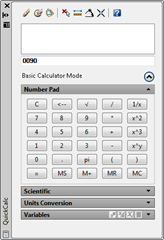
You can open calculator from view tab in your ribbon, in palettes panel.
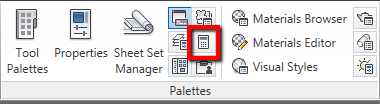
One thing that it has, but not in Windows calculator are these tools:

You can get points coordinate, distance, angle, and intersection coordinate from your drawing. In this example, you can activate get coordinate and pick from your drawing. Your pointer will change to allow you to pick point. Click a reference point to acquire the coordinate.
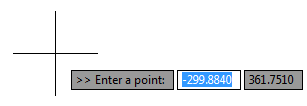
The interesting this, you can calculate those coordinates directly. Below, I pick a point, press + then pick another one. After I press = then the value will be shown.
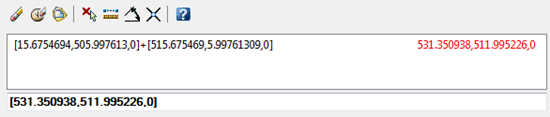
What is it for? We can divide the value by 2 to get the midpoint between those two points!

Now we get the coordinate. Try to activate circle or any other tool. When AutoCAD ask you for the center, click paste value to command line from AutoCAD calculator. Press [enter] then you get the center point at the middle of the two referenced points! A midpoint even there is no lines!
You can also use snaps in calculator input. Something like (END+END)/2 and save your common function as variables.
Using ‘CAL expression
‘CAL is probably one of the forgotten tools too. Even AutoCAD veterans sometimes doesn’t realize this tool exists. You can use it directly when a command is active and asking for an input. In this sample, I activate circle. When AutoCAD asked for a point, I type ‘CAL then [enter].
In expression, I typed (END+END)/2. This will let AutoCAD know we want to find two end points, sum the coordinate, and finally divide it by two. After we press [enter], AutoCAD will ask for the end points. Click your end points, then after you have done, the circle will be created at the middle of those two points.
Command: C
CIRCLE Specify center point for circle or [3P/2P/Ttr (tan tan radius)]: ‘CAL
>>>> Expression: (END+END)/2
>>>> Select entity for END snap:
>>>> Select entity for END snap:Resuming CIRCLE command.
Specify center point for circle or [3P/2P/Ttr (tan tan radius)]:
12.086721713978,7.2434797523953,0Specify radius of circle or [Diameter]: 3
Using Mid Between 2 Points
This is the easiest way to find a midpoint between two points. You can simply choose it from snap tools. You can hold [shift] then press right button mouse then choose it from the list (see shift tips no.1 here).
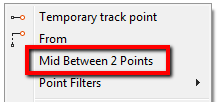
Or you can type _M2P to activate it from command line.
Thank you to Edward Winter (@iPinda) who reminds me about this one.
The animation
Want to see animation how it works? See the video on our YouTube channel below!
What’s your favorite way? Does it ‘CAL? Calculator? Object snap tracking? Or draw temporary lines?
I personally like ‘CAL. I don’t like having many OSNAPs on, so typing (mid+mid)/2 makes sense for me than having to activate snap everytime, to find reference points.


why is autocad so painfully complicated on even the smallest detail.
you mean to say I have to do the math on every line I want to copy and snap to midpoint.
(midpoint means / and or halfway point of a line)
(line means equals and / or shortest distance between two (2) points.)
Yeah, as annoying as that.
Intergraph (Microstation) you can snap to a division (which the field to enter that is right there)
Its called being Intuitive,
autocad you have to go to four years of night classes just to copy a simple line.
AUTOCAD SUCKS
Actually, you don’t need to do the math. You can use the other method: Mid between two points as explained in the article. The calculation is a method that you can use if you want to snap to another value, like 1/3, 1/5 etc.
Is it the same command with ‘CAL and then MEE?
Yes. But it’s faster to use M2P, isn’t it?
hello mr edwin I’m sorry for annoying , ,, this kind of question how you answer it or what you use for a polyline in the drawing that you have ? ( thanks a lot
which object snap used to create this polyline .?
end – tan – insert
ext – per – insert
end – qua – cen
mid – cen – node
Going back to at least Acad R9, we had implemented a lisp command called MP that ran as a simple function and could be used in the middle of another running command. It took quite a while for Autodesk to add it native to ACAD. We had linked it to one of the 16 buttons on our digitizers. Never had much of a need to adapt the routine to locate a thirds point or quarter point.
And it you’re seeking multiple equidistant points along an entity, there’s always the divide command
How can I find the midpoint of a line
there is two ways to find the midpoint of the line. One is object snap in the middle of line will show triangle it is the middle. Second choose object to draw or put to to the middle of the line then hold Control and click right click of mouse choose the mid Between 2 points it will go to the midpoint of the line .
before i use Object snap tracking, but now its Cal becaus Object snap tracking takes time :):)
Thank you Sir for this Great tutorial…
never mind, found it
_m2p (osnap)
do you know how to do this similar in bricscad? (no CAL feature).
great post. I will definitely have to try this out.
tony