Do you need to move UCS repeatedly when working with AutoCAD drawing? Not only when working in 3D, it’s also useful when you work in angled drawings. In 2012, you have the capability to move and rotate the coordinate system using grips, without having to access any tool.
Try to click your UCS icon. You should see the icon selected, and shows the grips. Hover above the grip (don’t click). You will see available menus to work with that element. You can also click the grip and cycle between the command by pressing [ctrl]. Yes, it’s similar with polyline grips in 2011 and other grips enhancements.
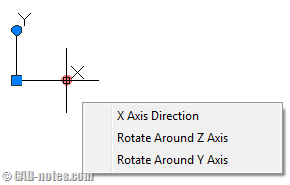
This enhancement allows you to move, align, and rotate it quickly. This is much better than using dynamic UCS that was introduced in AutoCAD 2007.
See this feature in action below!
I guess you will like it. But feel free to discuss it here and tell your opinion.


Ho do you move the UCS Icon in paperspace?
Type UCSICON then enter.
Choose ORigin then enter again.
Why would you need to move the UCS icon on paperspace?