May 23, 2013

AutoCAD tip: remove alternate unit bracket in dimension

Do you use alternate unit in your AutoCAD dimensions? If you do, you should notice that the that units are written inside bracket like below.
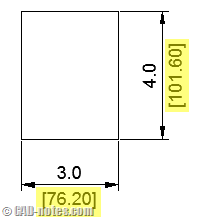
alternate_dimension_bracket

If you wish to remove the bracket, or change it to other type of prefix/suffix, you can do it using simple steps below: by modifying dimension style.

Removing the Brackets

To remove the bracket, open dimension style. You can type in command line for DIMSTYLE then press [enter].

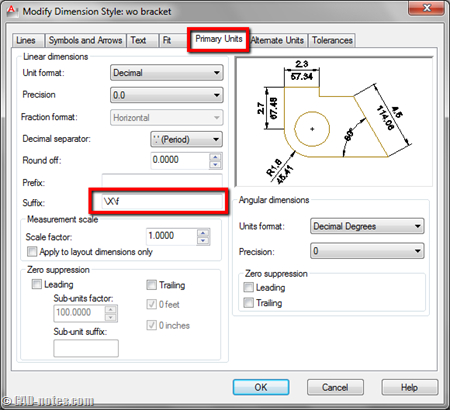
Go to primary units tab. Leave the prefix field empty, and type \X\f in suffix field. If you already enable display alternate units, then you will see it disappear in preview window. Don’t worry, we will make it appear again in the next step.
primary_units_suffix

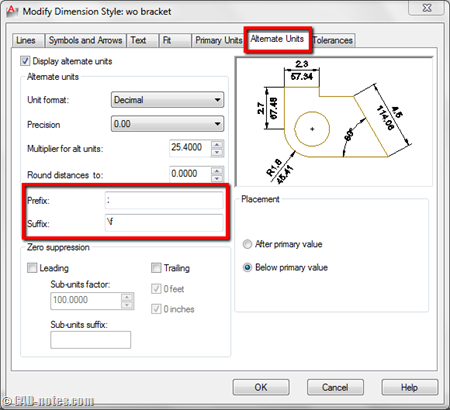
Now go to alternate units tab. If you haven’t activate it, activate it now.

In prefix field, type ;

Then in suffix field, type \f

You should see the alt units appear in preview again. Click OK and try to create a dimension using this style!
alternate_units

Change the bracket type

What if you want to change the bracket type? Not [ ] but maybe () or | |.

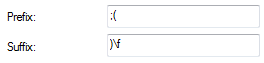
Easy. Just add ( in the alt unit prefix, and ) in suffix like below.
Changing Alternate Text Font

Defining font type in dimension style

You will see the alt units’ font be different with the primary. This method will remove any formatting used in text style. It will use font type that’s defined in options (see later in this post).

To fix this, you need to add the font type in the prefix. So instead of typing ; only, add ;\fArial; to define the font type. Arial is the font name. You can try to use other type if you want.
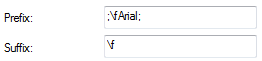
Credit to Paul Munford from CAD Setter Out who found this method.

Defining font type in AutoCAD options

The default font for alternate units is defined in options. If you want to change the default font, go to AutoCAD options. Go to files tab.

Expand text editor, dictionary, and font file names. Find alternate font file, then change it to match the font you use in dimension style. You may need to restart AutoCAD (close and reopen AutoCAD, not restarting the Windows) to see the changes.
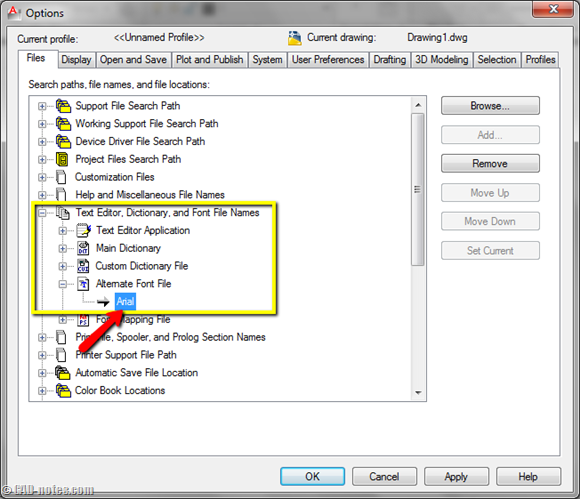
alternate_font_file

Credit to Patchy and ToanDN who gave this solution in Autodesk forum.

Advertisement


You might also interested to

About Edwin Prakoso

Edwin works as an Application Engineer in Jakarta, Indonesia. He has 4 years experience in building industry, then start to work for Autodesk reseller.
He is certified as Revit Architecture 2010 certified professional and AutoCAD 2013 certified professional.
He loves sharing his experience and starts to blog on CAD notes. Now using CAD is more to a lifestyle for him than working.
You can reach him on twitter @CADnotes. You can also connect with him on LinkedIn. If you prefer email, reach him at edwin.prakoso@cad-notes.com.

  • http://cadsetterout.com/ Paul Munford

    Hi Edwin – Great tip.

    The second part of your post refers to the Alternate text font changing the Alternate dimension style font. I’m pretty sure that this isn’t the case (I’ve tested it on my machine). The alternate dimension uses the same font as the dimension style, unless it has been overridden individually.

    The alternate text node in the options dialogue is referring to the text style that AutoCAD will use if it can’t find the specified Font on the computer. This comes into play of you receive a drawing from elsewhere and they have used a custom Font which you don’t have.

    I think I’m right – I’ll be happy to be proved wrong!

    Cheers – Pablo.

  • http://cadsetterout.com/ Paul Munford

    Edwin,

    I take it all back.

    After trying that tip out to the letter, you are absolutely right.

    Who’d have thought it!

  • http://cadsetterout.com/ Paul Munford

    Edwin,

    You came up with a tip I didn’t know about! It bugged me so much I had to figure out how it worked. Yes – I am that retentive :)

    This tip works by changing the square brackets ‘[ ]‘ font style to nothing. The default font style has no ASCII code for square brackets, so they don’t show up (You can see what’s going on when you use DDEDIT on the dimension annotation).

    Unfortunately, this also strips the font style from the Alternative Dimension Value.

    Adding the font style into the ‘Alternate units – Prefix tab’ will allow you to Style the Alternate Value: eg
    ;\fCentury Gothic;

    That was fun!

    • http://cad-notes.com Edwin Prakoso

      Thank you very much Paul… that was a great solution from you. Much better than changing it in option :)
      We need more persistent people like you… who stay in a problem longer – like Einstein ;)

  • bigroo

    Very useful tip, a real nugget as I’m currently drawing old rail archive drawings & imperial & metric are needed (with my preferred brackets!)