This guest post is by Paul Munford of CAD Setter Out. Great post Paul!
Did you ever notice the AutoCAD Status Line? It just provides the coordinates of the cursor right? Did you know that you can also use the Status Line to provide real time reports from system variables?
Would you like to see which command you where using when AutoCAD hung up? Would you like to see what Profile one of your team is using? Would you like to know how long you’ve had a drawing file open? And would you like to have all this information (and more!) displayed to you in real time in the AutoCAD status line?
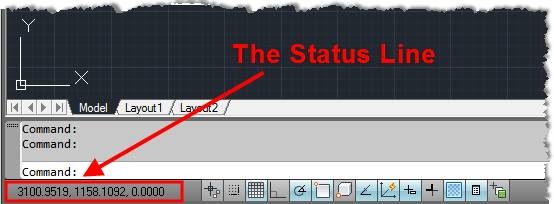
The Status Line
How do I edit the AutoCAD status line?
The value in the status line is a string (some text). By default the value is set to “” i.e. an empty string. We can edit this value using the ‘MODEMACRO’ command.
Type ‘MODEMACRO’ at the command line.
Command: MODEMACRO

Enter new value for MODEMACRO, or . for none <" ">:
Type ‘Hello Mum’ and hit return.
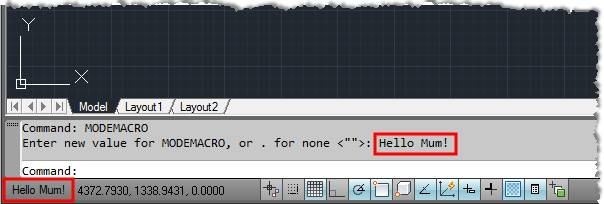
The Status Line with a personalised message
Well done! You have now added your own message to the status line!
How do I add feedback from system variables?
The Modemacro value accepts strings which include DIESEL expressions (‘Diesel’ = Direct Interactively Evaluated String Expression Language).
We can use Diesel to grab the values of the AutoCAD system variables we wish to examine, and stuff them into the Status Line.
The Diesel expression used to get an system variable is:
$(getvar, varname)
‘$ ()’ tells AutoCAD that the following string contained within the brackets will need to be evaluated by the Diesel interpreter.
‘getvar’ is short for ‘Get the value from an system Variable’ (this is a Diesel function)
‘,’ separates the function (what the Diesel expression needs to do) from the Arguments (what information the Diesel expression will perform the function on)
‘varname’ should be replaced by the name of the system variable that you wish to examine (This value is the argument).
Could you give me some examples?
Here are some examples of using Diesel expressions to return system variables to the status line:
$(getvar, cprofile) – Displays the current user’s profile
$(getvar, cmdnames) – Displays the current command.
Diesel expressions can also be nested.
$(substr,$(*, $(getvar, tdindwg), 24),1,3) – Display’s the total editing time.
The expression above takes the value of the ‘TDINDWG’ system variable, multiplies it by 24 (to get the time the user has been in the DWG file in hours) and then truncates the resulting string by only returning the first four characters.
Finally, you can string a whole load of Diesel expressions and regular text strings together to make the Status Line more readable.
Changing the ‘MODEMACRO’ value to this:
LOGIN: $(Getvar,LOGINNAME) | PROFILE: $(Getvar,CPROFILE) | WORKSPACE: $(Getvar,WSCURRENT) | COMMAND: $(if,$(eq,$(Getvar,cmdnames),""),Waiting...,$(GETVAR, cmdnames))
Would give us a status line that looks like this:
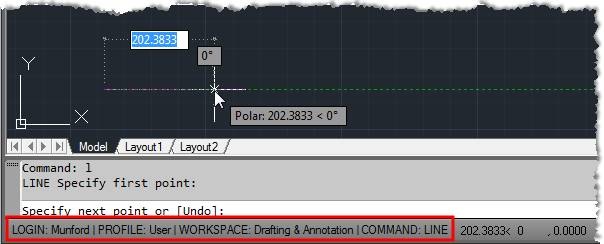
Tip: Find out how to get a full list of system variables using the ‘SYSVAR’ command or the AutoCAD express tool ‘System variable editor’.
How do I save my new value for MODEMACRO?
The value of the Modemacro string is not saved from session to session. To set up your own personalized value, you will need to use a start up script or LISP file to replace this value at the beginning of every session.
A Start up Script is ideal for AutoCAD LT. If you are working with AutoCAD in a networked office environment I recommend using the ACAD.LSP.
How do I define the MODEMACRO value using a start up script?
Create a new blank ASCII text document. Add the following lines:
Modemacro

LAYER: $(getvar,clayer) '(replace this code with your own Diesel expression)
Close the text file and change its name to ‘STARTUP.SCR’ make sure that your script is saved in one of AutoCAD’s search paths.
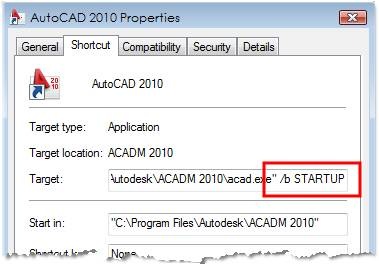
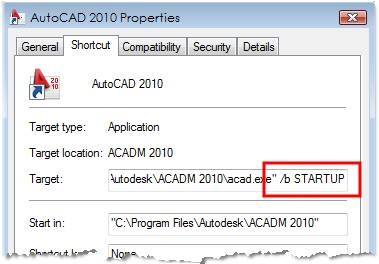
Now close AutoCAD and go to your desk top. Right click on your AutoCAD start up short cut icon and add the following code in the ‘Target’ box:
/b STARTUP
‘/b’ stands for ‘Batch processes. Your start up script will run as soon as AutoCAD opens.
TIP: The maximum length of the string that you can enter with the ‘MODEMACRO’ command is 255 Characters. If you need to add more than this use ‘SETVAR’ instead.
How do I define the MODEMACRO value using LISP?
The place to add a LISP routine to define the Modemacro Value is in your ACAD.LSP.
To add an ACAD.LSP file, create a new blank ASCII text document. Add the following lines:
(SETVAR "modemacro"

(STRCAT "LAYER: $(getvar,clayer)")

;(replace this code with your own Diesel expression)

;end setvar
Close the text file and change its name to ‘ACAD.LSP’ make sure that your Lisp file is saved in one of AutoCAD’s search paths.
The ACAD.LSP file is automatically run when AutoCAD starts up.
Tip: The maximum string length for the ‘MODEMACRO’ variable is 4095 characters.
I’d like to find out more about Diesel
If you would like to find out more about Diesel, check out these web sites:
Dietmar Rudolph’s Diesel reference page
Ralph Grabowski’s ‘How to write a Diesel Macro


Is there a way to use the FIND command and have its ‘total found’ value captured for a number of strings?
For instance, I have MLEADERS with values from 1-100, and various quantity for each value (five MLEADERS with the number 7 in them, etc…) and I usually use the find command and look for the number 7 while all mleaders are selected and it comes back and says 5.
I would like to automate that with a script… any recommendations?
Hi John.
You can definitely do this – it would involve some fairly lengthy scripting though!
I recommend that you ask for help on the ‘Swamp; AutoLISP forum:
http://www.theswamp.org/index.php?board=2.0
I think that the logic would go like this:
1. Trigger Lisp routine – this would need to be attached to an event, such as save or re-gen.
2. Run Lisp routine
2.1. Select all entities in the DWG file
2.2. Filter down to Mleaders
2.3. Filter down to Mleaders that contain ‘7’ in their text property
2.4. Count the number of items in the resulting set
3. Allocate the value to ModeMacro
Does this help?
Paul
Edwin, Thanks for your help to the Autodesk community
is it possible to make a report into this info? i.e. if you want print out reports of how long people are spending on drawings
I'm glad you liked it mini guy :)
I hope that you find the technique useful!
Paul (The CAD Setter Out)
Way cool.. :-)
hebat222 ….