Bentley Systems introduce active element priority since MicroStation V8 XM. This feature can be very useful. I believe many MicroStation users may overlook this feature.
We can use it to make sure an element always behind the others (or always on top). If you want to use an image as underlay, then we can set the element priority as low as possible.
In this post, I would like to try using it to automatically ‘change’ line type when they are ‘hidden’.
The idea is to create two layers of elements. The first one, lies at the bottom. It uses continuous line. The second one is identical object. Created on top of the first one, uses hidden line.
Because we have the continuous line as underlay, we see it as continuous line. But when we created new object with priority between those two, will cover the first object and show only the 2nd one. It means that part will be shown as dashed lines.
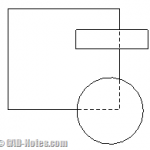
Confused? Let’s try it.
Preparing the bottom objects
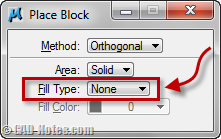
I created two identical rectangular using block tool like below. One rectangular uses line style 0 (continuous) and the other uses line style 2 (dashed).

Both rectangular were created without fill. If you use fill, then it won’t work.
Set the priority
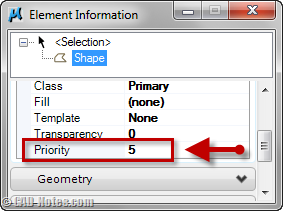
Now let’s set the elements’ priority. Open element information dialog.

Select the continuous rectangle, change the priority to negative value. For the dashed rectangle, change the value higher. I use –5 and 5 for them.
Now move the rectangle so they are overlapped each other. You should see only one continuous rectangle now. You may want to group them together, to make it easier to manipulate later.
Creating the top object
Now let’s create another rectangle. This time with fill. Use 255 as the fill color.
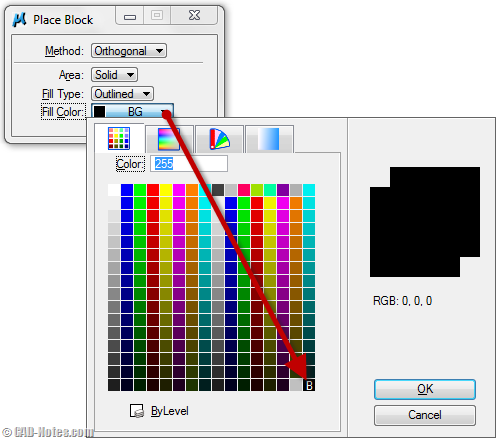
Draw the rectangle to cover some part of the first rectangle. Now every time you create a closed polyline above the first rectangle, the covered area will be shown as dashed lines!
When you move it, the dashed lines will update the location. Uhm… at least it looks like that!
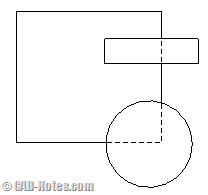
See it in action!
If you’re still not clear the steps above, try to see this video.
Do you think it will be useful?


