We covered several topics on how we can draw more efficiently using AutoLISP. Now it’s time to move on. We are going to learn how we can modify existing objects in our drawing.
The most important thing about editing objects is to select them. As we know, After we activate an AutoCAD modification command (like move, copy, etc) AutoCAD will ask us to select object.
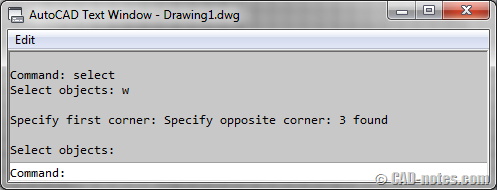
Saving selection to a variable
The function that allow us to do this is SSGET.
Sample 1: Move to left
This sample program will allow you to select object and move them 5 unit to left.
(defun c:mleft ()
(setq sel1 (ssget))
(command "move" sel1 "" "0,0,0" "-5,0,0")
)
SSGET will save your selection to sel1 variable. Then you can add it to move command.
Remember, you need to add “” to end selection. If you don’t add it, AutoCAD will continue to ask you to select object.
Sample 2: Reset properties to ByLayer
One thing that can annoy us when trying to apply CAD standard, is having the objects’ properties overridden. Set to other than ByLayer.
You can change object properties by using CHPROP. Then you can choose which properties you want to set to ByLayer. Try to use CHROP to understand what we’re doing below.
(defun c:rst ()
(setq sel1 (ssget))
(command "CHPROP" sel1 ""
"COLOR" "BYLAYER"
"LWEIGHT" "BYLAYER"
"LTYPE" "BYLAYER"
"")
)
Using other selection mode
Sometimes we need to select objects without asking users to give input. Or limit the method for user to use.
Using the code above will let users to use AutoCAD default mode.
You can use these code to select object from within the program:
(setq sel1 (ssget "w" '(0 0) '(10 10)))
That code will select all objects inside rectangular window from 0,0 to 10,10.
Other code that we can use are:
setq sel1 (ssget "c" '(0 0) '(10 10)) to select object inside and touching rectangular window (crossing polygon).
setq sel1 (ssget "l")) to select last object’s created.
setq sel1 (ssget "p")) to select objects in previous selection.
setq sel1 (ssget "x")) all objects in the drawing.
If you’re not familiar with the selection mode above, read using AutoCAD selection below.
For window and crossing polygon selection, we can also ask for user’s input.
For example:
(setq pt1 (getpoint "

Pick first point: "))
(setq pt2 (getpoint "

Pick other corner point: "))
(setq sel1 (ssget "c" pt1 pt2))
We will expand this selection using filter.
If you have a simple example that we can use in this exercise, please let me know. I will add your code here, and you will be credited.
Further readings:
- Selection sets. Good explanation by Kenny Ramage on AfraLISP.
- Using AutoCAD selection. Here are the list how you can select objects in AutoCAD.
- AutoLISP function list. See all LISP function that you can use to expand your LISP program.


Can you use lisp to incrementally modify blocks with attributes? For example, i have 5 blocks 5′ apart that are numbered 1 and I want them numbered 1-5