• Home
  • Training Books
  • Subscribe to Our Email Newsletter
  • About
    • Contributors
    • Feedback
    • Contact
    • Privacy policy
    • Cookie Policy

CADnotes

CAD Tutorials and Best Practices for professionals and students

  • Featured
  • AutoCAD
    • AutoLISP
  • Revit
    • Revit Architecture Basic
    • Revit MEP Basic Tutorial
  • Inventor
  • MicroStation
    • MicroStation Basic Tutorial
You are here: Home / Revit / Revit Conceptual Design: Working with surface pattern

Revit Conceptual Design: Working with surface pattern

July 11, 2011 by Edwin Prakoso 1 Comment

In this Article...

  • Dividing surface
  • Divided surface properties
    • You can turn on/off U and V grid from ribbon
    • You can set U can V grid by number or distance using option bar
    • You can change the surface pattern from type selector
    • Using curtain panel family
  • Further readings

We had some Revit conceptual design tutorial before. We covered how you can change the mass faces to building elements. But the default curtain system is kind of boring. We can only use horizontal and vertical mullion.

curtain systems

LOS ANGELES HIGH RISE
© Salvador Ceja | Dreamstime.com

In this post, we will try to create more fancy curtain system. These kind of design is quite popular these days.

This capability is added in Revit 2011. So if you have Revit 2010 or older, unfortunately you can’t follow this tutorial.

Dividing surface

Try to create a mass element. You can create mass in place or using mass family. We are going to work in mass editor environment.

Activate modify tool. Now select a face of your mass.
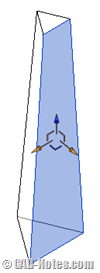
selected face

Click divide surface from your ribbon.
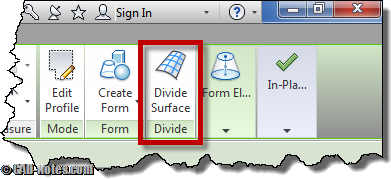
divide surface

Divided surface properties

After we divide the surface, you should notice there are several changes:

You can turn on/off U and V grid from ribbon
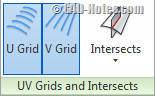
uv grids

You can set U can V grid by number or distance using option bar

option bar

You can change the surface pattern from type selector
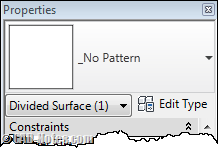
type selector

Play around with those settings.

This is what I get after Ii change the pattern to arrow and adjust the distance using option bar.
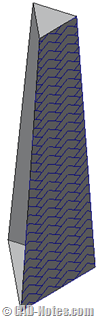
surface pattern

Using curtain panel family

Default Revit template only has simple patterns. Only pattern lines and fill. If you use them and finish your mass now, it will remain as part of your mass. Not yet a curtain system. It will disappear if you turn off the mass visibility. And it will not appear in your schedule.

If you want to create curtain system from that surface, you need to load curtain panel family.

Activate load family. You should find curtain panel by pattern folder. Try to find one that you like inside that folder.
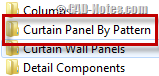
curtain panel by pattern

After you load it, you should find the family in type selector.
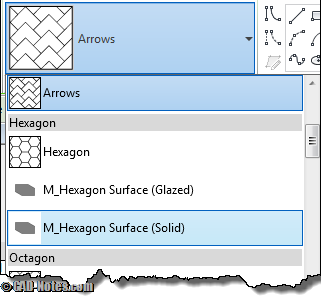
loaded families

These panels are adaptive components. Can we make our own curtain panel? Of course. We will cover this later.

Further readings

  1. Find the complete Revit tutorial here.
  2. Adaptive component introduction: Working with adaptive component (2D profile).

About Edwin Prakoso

I work as a Sr. Consultant in PT Cipta Satria Informatika. I've been using AutoCAD since R14 and Revit since Revit Building 9. I occasionally write for AUGIWorld magazine and I am also active in Autodesk discussion forum. I'm a member of Autodesk Expert Elite, an appreciation for individuals who give contributions to the Autodesk community.
Connect with me on twitter or LinkedIn.

Filed Under: Revit Tagged With: surface pattern

1 1 vote
Article Rating
Subscribe
Login
Notify of
guest

guest

This site uses Akismet to reduce spam. Learn how your comment data is processed.

1 Comment
Inline Feedbacks
View all comments
Sumedha Dayaratne
Sumedha Dayaratne
13 years ago

hey, do they not have the devide surface option in Revit 2012?

0
Reply
wpdiscuz   wpDiscuz

Featured

Revit extensions: Must have tools for Revit productivity

Do you use Revit extensions? There are so many tools available to extend your Revit capabilities, to increase your productivity. If you haven’t used it, then you should try it now!

Recent Articles

  • Revit Pattern Alignment
  • Why BIM Dimensions (3D, 4D, 5D) Are No Longer Relevant
  • Bridge: Controlled Data Sharing Between Stakeholders

Advertisement

New on CADnotes

  • Revit Pattern Alignment
  • Why BIM Dimensions (3D, 4D, 5D) Are No Longer Relevant
  • Bridge: Controlled Data Sharing Between Stakeholders
  • Autodesk Construction Cloud Evolution
  • Autodesk Construction Cloud Activity Log

Meet the Authors

avatar for
avatar for
avatar for
avatar for
avatar for
avatar for

Get Connected

CADnotes on FacebookCADnotes on InstagramCADnotes on TwitterCADnotes on YouTube

© 2009 – 2026 CADnotes · Feedback · Privacy Policy · Become an affiliate

wpDiscuz