Let’s continue our discussion to work with AutoCAD better.
I understand that sometimes we’re not only setting up layers, styles, and all of those settings. Sometimes we also put drawings in our template. The most common thing we do is putting title block in our layout. I prefer to have different libraries for that, and insert them later when I need them.
As I always said, it might be not the best practice for you, because specific industry may need different framework.
If you feel that you still need to add more things in your template beyond our discussion please share them here.
At this point, we consider our template is finish. You can start from the first task and review what you have prepared.
Let’s continue the topic further: saving and using the template.
Saving template
AutoCAD template basically is just an AutoCAD drawing. To save the drawing to a template, open the drawing. From application menu, choose save as> AutoCAD drawing template.
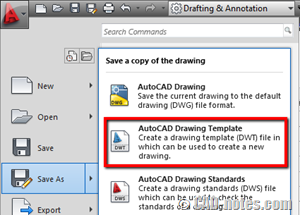
But the truth is, you can simply change the file extension from .dwg to .dwt from file explorer.
You may want to place your template in a shared location, so all AutoCAD users in your office can use the same file. Or a folder in your local file.
Using template
So how we can use the template?
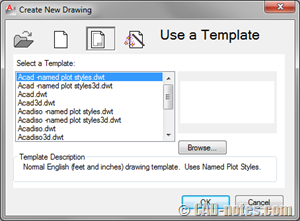
We can choose template when we create a new file. You already did it when starting a new template.
Setting up default template
Now that we have our own templates, we want AutoCAD to open our default template, instead of the default acad.dwt.
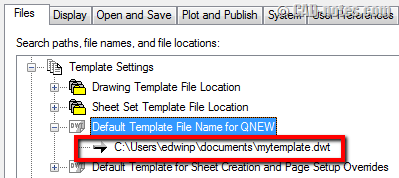
To change it, you can go to AutoCAD option. In files tab, under template settings category, change default template file name for QNEW to your default template.
Showing startup menu
The problem is AutoCAD loads default template every time it’s started. If you use different templates in many drawings, you will want to choose which one before AutoCAD start to open.
I prefer to set STARTUP system variable to 1. Since AutoCAD 2012, I prefer to set it to 2. I prefer this method, because it works as reminder and force user to choose appropriate template.
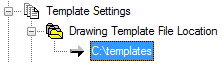
Default template location
If you do keep your templates in custom location, either locally or shared location over network, you need to change default template location.
Working with CAD standard
Now that you have set a good template, we can use it as a standard. We want us to keep following those settings we made.
You can save as the template as .dws file. Read about drawing standard here.
Paul Munford and PepaR have good argument to keep their template simple. They choose minimum number of styles by using 0 text size. The downside of using this is users can set text size to any size they want. CAD standard won’t recognize if the users use custom sizes. The benefit is the style list is simple, easy to find. You can minimize non-standard text by giving the users which sizes they may use in a printed guide or briefing.
Now let’s see if you choose to have different text styles for each size (I usually have 3 text styles). You can use CAD standard to check and give warning if there’re text that don’t follow standard.
Discussion

- Are your templates also used by your colleagues? Do you save them in local folders, or shared folders?
- Do you use startup dialog to choose templates?
- Do you use CAD standard? If you haven’t, do you think it can be useful?
We’re done with templates. Next week, we will cover a new topic. I have several e-book copies that I will give to participant, based on most interesting discussion. Stay tuned!
*If any one interested to be a guest writer in this series, you can contact me at edwin. prakoso @ cad-notes.com


1. Are your templates also used by your colleagues? Do you save them in local folders, or shared folders?
Our templates are on the server in a shared CADD folder. Some drafters were taking an old 'similar' drawing and erasing everything to have a clean file. The problem is that some blocks, layers, and text/dim styles are wrong for current company standards. Breaking users of this habit was hard but worth the effort. Old drawings can bring corruption to a drawing set that isn't worth the perceived time saved.
2. Do you use startup dialog to choose templates?
We are a one disciple firm so only have one template at the moment. I need to create an ANSI D template for a municipality we are working with. With more than one template using the startup dialog box is a smart idea. Be sure and have the Options / File path set correctly on your machine.
3. Do you use CAD standard? If you haven’t, do you think it can be useful?
The CAD standard .dws file is very useful for checking drawings for correct layer management. If users are creating their own layers and not following the company naming rules it can create problems for other users of the file.