AutoCAD doesn’t work with real world measurement, but drawing unit. We covered how to convert an AutoCAD drawing from one unit to another. It was for you who want to convert a drawing, then continue working with that drawing in different measurement unit.
What if you want to work with two different units? I remember I had a project owner who doesn’t use CAD intensively. She prefer to work in meters. I need to have final drawing in meter, but I work in millimeter. Converting the drawing back and forth to different units is not convenient. Not to mention I may forget to send her the final drawing in meter.
If you’ve tried using Inventor Fusion (now it’s included in AutoCAD 2012 box), it has the capability to use other unit. If you work in metric model, and want to draw a 4 inches line, I can simply type ‘4 in’ in input field. Would be nice if AutoCAD has the same feature, isn’t it?
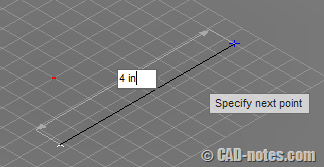
You can do it actually. It needs a workaround, but at least it works.
In this example, I want to have final drawing in imperial, but I want to work in metric.
We need to reference the original drawing
First, I use a sample drawing provided in AutoCAD installation in C:\Program Files\Autodesk\AutoCAD 2012 – English\Sample\Sheet Sets\Architectural\Res. Copy one drawing to a new folder. You can name the folder final drawing. We will call this drawing as final drawing.
Second, create a new folder, give it name working folder or something. Create a new metric file and save to that folder.
Third, open the new drawing, then attach the final drawing as reference. As you already know, the original drawing is automatically converted to metric. We will call the new drawing as working drawing.
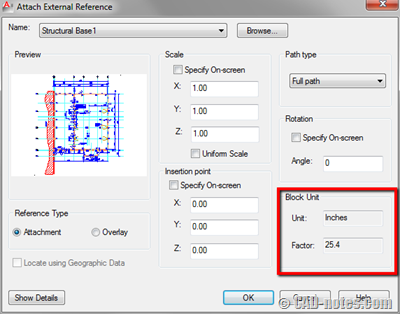
Now you have the drawing in millimeter, but we still have to work in imperial to modify the drawing right? Wrong!
The original drawing can inherit properties of working drawing
In your working drawing, select the referenced drawing (the final drawing) then right click. Choose edit xref in-place from contextual menu. Or from AutoCAD ribbon.
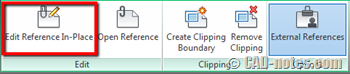
Now you’re on final drawing, but inside your working drawing. Now let’s see the magic.
Try to draw something here. What happened? Now you’re drawing in metric! The final drawing is in imperial, but yes, you are now able to draw in other unit.
Layers and styles
One thing you should consider while working like this is using layer and styles. You can use layers and styles in working drawings. But if you want to use only layers in reference file (the final drawing), then you must choose them with funny characters in front of their names.
For example in my file the characters are $0$
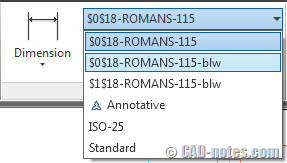
What if I want to work with Imperial?
Easy. Don’t edit the reference file in place. Open the file to edit it directly.
Saving the final file
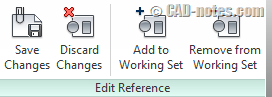
To save your work, you can save it using edit reference panel.
One more thing. You can also use blocks instead of reference files. Probably using block is a bit more convenient when you work on small portion of the drawing.
A cool trick, isn’t it?


autocad 2016 how do we turn off icons with words in space bar?
I’m sorry but I don’t know which part you are talking about? Can you elaborate?