In this Article...
So you have downloaded or created your own AutoCAD pattern. Now you want to use it. But how?
There are two ways to do this: you can combine your custom pattern with acad.pat or add a support file search path. I will recommend the last one. You may lose your custom pattern if you somehow need to reinstall AutoCAD or your Windows account corrupts. Or you may just make your acad.pat corrupt.
Combine with acad.pat
You can find acad.pat in support folder. It should be something like C:\Users\YOURWINDOWSACCOUNT\AppData\Roaming\Autodesk\AutoCAD XXXX – English\RXX.0\enu\Support. Find acad.pat and open it with text editors like notepad or notepad ++. Do not use Microsoft Word. I suggest you make a backup of this file before you start to work.
Open another instance of Notepad and open your custom hatch. Select all, then copy it using [Ctrl] + C. I use chainlink pattern from DotSoft website.
Paste it at the bottom most of your acad.pat file.
There is a comment that if you add user-defined hatch below that section, then when you upgrade your AutoCAD this file will be migrated correctly.
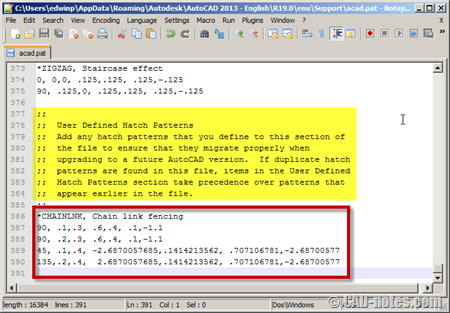
However, I still avoid this method.
Now save this file. You should immediately see your custom hatch in pattern list.
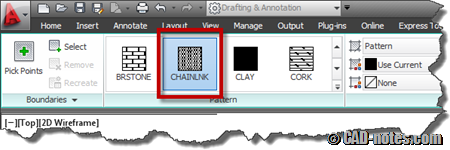
Add support file search folder
If you place all your custom hatch in your custom folder, you can add support file search path. Open AutoCAD options (type OP then enter).
In files tab, below support file search path, add your folder.
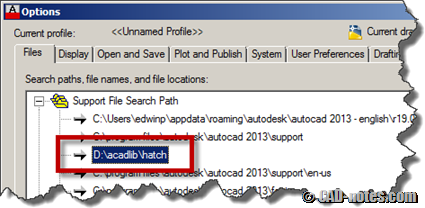
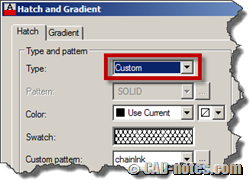
Click OK to accept this changes, then when you activate hatch command, you should see it in your pattern list. If you can’t find it, you may need to change pattern type to user-defined.
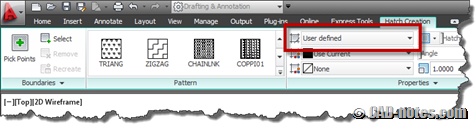
If you use hatch dialog box, you can change pattern type to custom or user-defined.
I always use the last method and avoid the first one. So I never really have a problem or may be benefits of the first method. If you use the first one, why do you choose to use it? Will you recommend it instead of the last method?


NICE WEBSITE. NICE CONTENT KEEP IT UP.
But I am confused about this.
How to use Autocad Hatch?
NICE WEBSITE. NICE CONTENT KEEP IT UP.
But I am confused about this.
How to use <a href=”https://autocadprojects.com/autocad-hatch/”>Autocad Hatch</a> ?
the “Add Support file” really saved me a lot time! thank you for your great help!
This is really useful one …i used the second one as you describe it feel very simple and easy to work.
thanks dear bror