In this Article...
If you are using networked license for your products, you probably familiar with many problems. In this articles, we will see what might cause your license server can’t serve license. Or what cause your computer’s client can’t get license from server.

1. Merge license file
Let’s say you purchased AutoCAD and Civil 3D. You received two license files. You configure separate service for each license in LMTOOLS. You click start server, now you should have all the license running, right?
Wrong! This was my mistake before. You can only have one adskflex daemon running on one server. You can’t have two or more license file on one server.
What if I have two license files like above? You need to combine the license files to one file. Then you can configure the license server.
See how you can combine license files in Autodesk documentation here.
After you combined the license files, all the license should be running.
2. Allow program through firewall
You start the status enquiry and see that all the licenses are running. You tried to ping from client to server and vice versa. Everything looks OK, but client still can’t get the license. Have you checked your firewall?
If your server has firewall or other port blocking software, you should allow some ports to let client get licenses from server.
See documentation about ports used by Autodesk License Manager here.
Or you can download this batch file. Extract and run it on your server. You only need to run it once. It is recommended to run it on Windows command prompt, so you see if there is any error there.
3. License issue date
You already have AutoCAD 2013 seats on license server. Later you purchase additional AutoCAD 2013 seats, and put it on the same license server. After you combined the license file, you see that the number of licenses is not correct.
Apparently license issue date is important. For the same product (AutoCAD 2013 in this example) you need both licenses issued on the same date. If they have different issue date, then LMTOOLS only issue the latest license file.
Check about license issue date in Up and Ready blog here.
4. Using IP instead of hostname
Everything looks fine. Client can connect to server. Firewall allows port 2080 and 27000-27009. Status enquiry reports correct number of licenses.
However, you get this message when you start the client program.
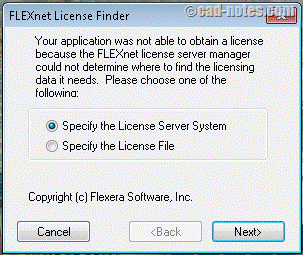
You can click next and try to type the hostname again. If it failed again, try using IP instead of hostname.
If it works, then there must be something wrong with your network configuration. If your server is using static IP, then it wouldn’t be a problem. But if it’s using dynamic IP, then you have a problem. You should fix the network configuration first.
See the documentation about using IP instead of server name here.
5. Can’t get license on slow connection
If your client is on remote area and connected to license server through slow connection, it might not be able to get the license.
The best solution is the increase the connection speed, of course. However, if it’s not possible you can increase timeout time for your client.
See documentation about setting up FlexLM timeout here.
6. Option file
If you think network license is much easier to manage than standalone, think again. You will have to manage many users fighting for small number of licenses. There are users that open AutoCAD, then let it open even they don’t use it.
You have to control the license usage. You can do this in LMTOOLS by using option file.
See how you can control the licenses using option file here.
7. FlexLM error codes
Those six above are common problems. Assuming you know how network license works and how to configure it. If the steps above still can’t solve the problem, then you might want to check the error code. Error code will give you better direction for problem solving. Let’s say you have -4 error code when running the client. What is -4? Your users already use all licenses!
See the complete FlexLM error codes here.
Do you ever have other problem?
Above are most problems I see in my customers. Have you ever encounter other problem and solve it? Share with us here!


Hi Edwin,
Why when i perform status enquiry, the LMTools will automatically closed, without any indication. Thank you.
What version do you have? Have you tried to use the latest version?
You can download it here: http://knowledge.autodesk.com/customer-service/network-license-administration/get-ready-network-license/download-the-network-license-manager
Have you tried to run it as administrator?
Many thanks Edwin good work.
Hi, I’ve combined a building design suite preminum 2014 with 4 seats with building design suite preminum 2015 with 5 seats. When I put this combined file in the license parser, it correctly reads the two programs and seat numbers I listed. I read your article and realized I needed reissue the older one, so now they both have the same issue date.
However, every time I run the server diagnostic it tells me there are 4 seats available. I’m at my wits end here. How do I get it to register that it’s 5 seats? These are package license files, I left both the package and increment lines for both licenses when I combined.
Thanks,
Emily
Emily,
If you check with licenseparser.com and it shows correct licenses, then the license file is good.
I think your LMTOOLS is still reading the old license file. If you name the license file with different name, you can check this from log file.
Try to stop the license service (you can use Windows services tool or LMTOOLS) then start it again.
Thank you!
Item 4:
The license finder tool pops up as a default in a course of determining the license server. the order of precedence for determining the license server is:
ADSKFLEX_LICENSE_FILE environment variable
ADSKFLEX_LICENSE_FILE registry key
LM_LICENSE_FILE variable
licpath.lic file and
License Finder dialog box configuration.
If none of the 4 first methods suceed – the dialog box opens.
Note that
1. the dialog box configuration changes the ADSKFLEX_LICENSE_FILE registry key, so it will take precedence over licpath.lic and LM_LICENSE_FILE. In order to return to those methods the ADSKFLEX_LICENSE_FILE key would have to be deleted from the registry.
2. According to this article: http://usa.autodesk.com/adsk/servlet/ps/dl/item?s…
the registry key is:
HKEY_LOCAL_MACHINESOFTWAREFLEXlm License ManagerADSKFLEX_LICENSE_FILE
But from our experience, the registry key is:
HKEY_CURRENT_USERSoftwareFLEXlm License ManagerADSKFLEX_LICENSE_FILE
Ori Kaplan, OpenLM .
Item 2 – note that on some Windows Server versions, specifying a port-range (as done within the batch file) is disallowed, in such cases, one needs to make individual port exception rules for ports 27000-27009.
Item 3 – License Issue Date isn't described properly. When purchasing additional network seats of a product, such as AutoCAD 2013, when placing the order simply have Autodesk or Reseller process the order with an increased license count of the existing group serial number. Then when generating a new license file, it'll have the increased license count automatically, copy and paste the Increment and Package portions from the new license file and overwrite the Package and Increment of the previous lesser-count version in one's master license file.
There can be cases where a company might have two "pools" of licensing, such as 10 seats of AutoCAD under subscription, and 5 seats of AutoCAD where they allowed Subscription to lapse. In such a case, one would assemble a license file that had the Package and Increment of the 10 network AutoCAD 2013, followed by just the Increment portion of the 5 additional AutoCAD 2013 not on subscription (the Package portion is a Subscription benefit that enables the use of three prior versions, so the Package portion is not issued to non-Subscription licenses).
As long as both AutoCAD license blocks were generated on the same day (thus date stamped the same), the two groups of licensing will "aggregate" into 15 AutoCAD 2013 network licenses, but allow only 10 AutoCAD 2012-2010 to run.
Item 6 – Option File, you stated "If you think network license is much easier to manage than standalone, think again". Your characterization of network licensing seems dogmatic, network licensing is not that difficult and provides a lot of flexibility. There are pros and cons with each type of licensing, the issue deserves a more practical review to determine which licensing type is best for a business.
Thank you for the additional details Mark.
For no. 6: yes, it offers flexibility. That's why I mention about option file.
thanks for the post, i can make use of the options file!
Good stuff Edwin — thanks for taking the time to post this one!