In this Article...
Have you ever used AutoCAD saved views? Common uses of saved views are to save a view location and magnification, along with the UCS settings. Not only when working with 2D, saving view is very useful in 3D views too.
There are several more things you can do by using saved views. Let’s see what else we can do with saved views.
Besides the common use as described above, here are 5 more of them.
1. To save layers snapshots
A view can save layer snapshot. A view can only remember the layers visibility and only works in modelspace. So it’s not the same with layer states. Layer states work with all layer properties and you can use it in a layout.

So why would we use it with views?
During working with complex drawings or models, we sometimes turn off layers to work comfortably. We turn off layers of objects that get in the way. Like annotations. In 3D drawings, we turn off interfering objects. And for performance purpose too, especially in 3D modeling.
Using saved views will make it easy to turn a bunch of layers on/off.
2. To work with Sheet Sets
If you use Sheet Sets, you can drag and drop a saved view to a layout. If you planned to place a view in AutoCAD Sheet Sets, you can save it for later use. When you want to compile the drawings in a layout, you can simply drag and drop it to the layout.
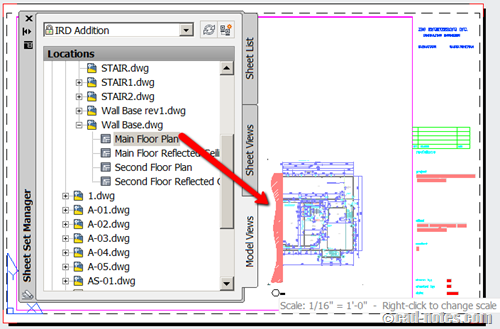
You can find saved views in Sheet Set manager palette, model views tab.
This technique is covered in our Document Management with AutoCAD Sheet Set e-book.
3. You Can Open Drawing Partially
If you have a very large drawing, you can open the drawing partially. You can select which view to open with Partial Open option.
It is also helpful if your drawing gets corrupted and you want to try saving anything that you can save. Read about Partial Open here.
4. To animate with ShowMotion
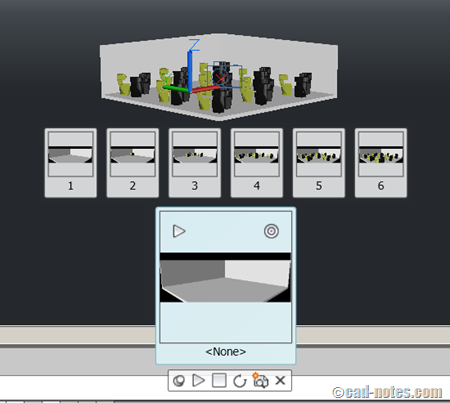
Are you familiar with ShowMotion? ShowMotion can animate your saved views, by adding movement and transition. If you want to present your models by adding some transition effects, you can do it within AutoCAD.
Not only for presentation, you can show views sequentially to show design sequence. If you have Navisworks, you surely want to use it. But if you don’t, you can do it with ShowMotion for quick and simple presentation.
You can turn off all layers, save a view. Turn on foundation layer, then save the view again. Repeat the process until you are done. After you’ve done, you can run ShowMotion in your presentation.
5. To batch render with Autodesk cloud rendering
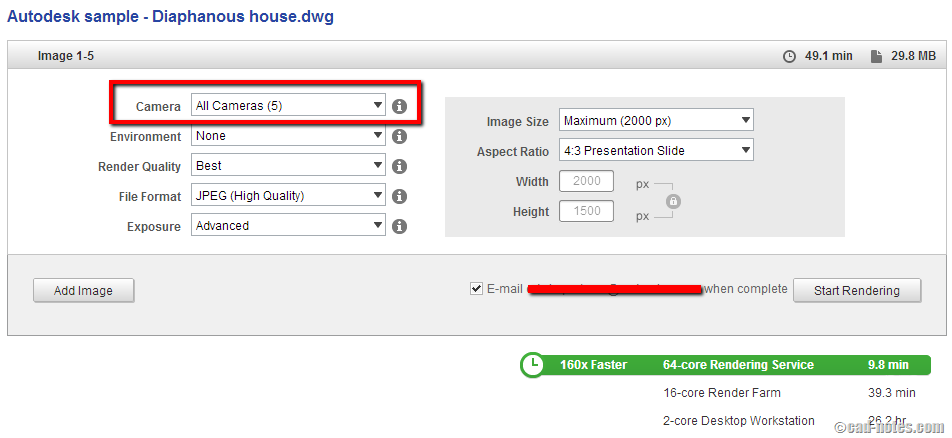
Have you used Autodesk 360 rendering? You can batch render your views on cloud. To save the settings, like camera, sunlight, lights, etc, you must save it in saved views.
After you save the views, you can upload the DWG file and render all views at once. Autodesk 360 rendering is not perfect at the moment. But it can produce good result in common scenes.
Have you used saved views?
Views probably an overlooked tool. Not many people I see use it.
We will cover more about using views later. Now, do you use saved views for other purpose? Can you share it with us here?
If you haven’t used it, do you think it’s useful? Will you use it?


Saved views are also very comfortable for navigating with Hyperlinks. You can click a section line and Hyperlink takes you to the section plan…
Hi Sam,
ShowMotion can't record animation to video. You need other recording software to do that.
Try Jing, the free version can record to swf format.
Hello,
i have creted a showmotion with autocad 2011, but i cant save it. i Need it as Video file !! how to do this?
Sam
I use them to set viewport views. Create a saved view of the general area of what I want to see in my viewport, then activate the viewport, apply the saved view. Much faster than panning in zooming, C3D makes the standard panning and zooming more difficult.