Have you ever need to find a linetype, layer, a block, or styles within a drawing? You may need it for several reasons. Either you want to reuse it or want to track drawings that use those objects.

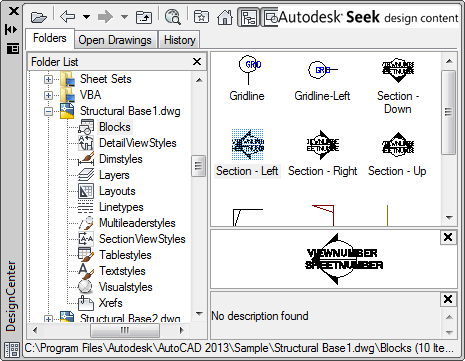
Do you remember Design Center? Design Center is a very useful tool to look inside a drawing. It works exactly like Windows Explorer. What makes Design Center more superior is: it allows you to see objects in the drawing. See the tree below. You can select object type and Design Center will list the objects on the right pane.
The search tool
Like Windows Explorer, Design Center also has search tool.

Because it can show you objects within drawing, it allows you to find those objects as well.
In this example below, is search result for blocks named ‘title block’.
You can define object to search, folder location, and the object name.
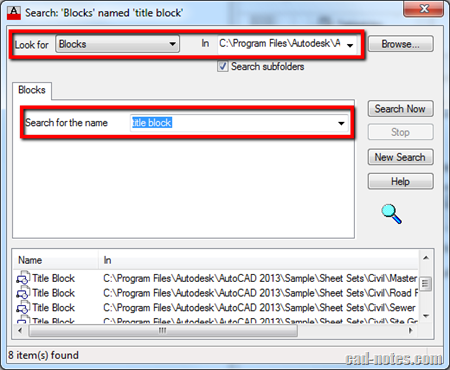
As you can see, it will show the object and the file that have that object. Unfortunately we can’t change the list view to thumbnail or other view.
However, you can see the object in Design Center by selecting the object, right click then choose load into content area.
It will show the object in Design Center. This is very useful if you have objects with same name but they are different, so you can check it first.
Using wildcards
Like in Windows Explorer, you can also use wildcards in searches.
For example:
ISO* will give search result anything started with ISO.
*ISO* will give result anything that contains ISO in their name.
ISO??? will give result anything start with ISO and anything that have 3 more alphanumeric characters. It will not list ISO1234, but will list ISO123.
It helps when you need to build your library
If you are trying to create your company standard and want to use objects from old drawings, this is very helpful. Like what we did in 10 days to work better with AutoCAD, you may need to define layers, styles, or blocks.
We don’t have to create new objects. We can just find them from older drawings. It can be very difficult, but Design Center certainly helps!


You can also use DWG Browser. It can export the findings into easy to read HTML pages with preview images.
http://www.graytechnical.com/software/dwg-browser/